
Viewing Project History
MQL5 Algo Forge is a Git-based version control system. This means changes made to tracked files can be easily reviewed and, if necessary, reversed.
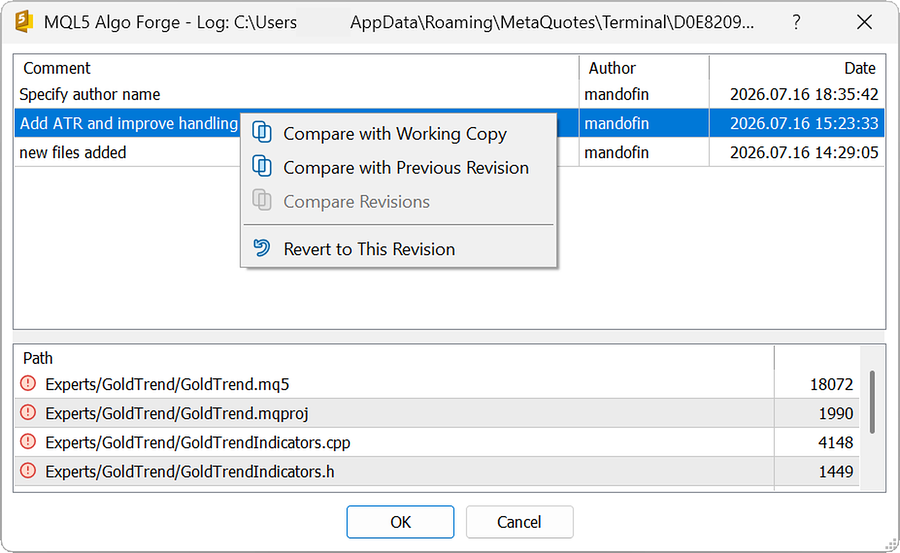
Right-click the file/folder, then select "Git Log". In the commit history dialog, right-click the relevant commit to see available options.
Working Copy vs Selected Revision #
In the commit's context menu, selecting "Compare with Working Copy" compares the current file to a specific revision. A window showing exactly how the file differs from that revision will open.
Current Revision vs Previous Revision #
When searching for the causes of a new problem, you may need to conduct an analysis of recent changes. MetaEditor supports comparisons between the latest and previous revisions.
Right-click the newest commit to open its context menu, then select "Compare with Previous Revision". A window showing the specific differences will open.
One Revision vs Another Revision #
Comparing two arbitrary revisions shows the accumulated changes between the checkpoints. This enables you to isolate regression bugs and audit your code without stepping through every intermediate commit.
In the commit history dialog, hold Ctrl and select any two commits, then right-click the selection and choose "Compare Revisions". A window showing the exact differences will open.
Working Copy vs Latest Revision #
To view the changes in a modified file before committing, right-click the file and select "Git Difference". A window showing the differences between the file's current state and its last revision will open.
Window Showing Changes #
A window with several sections and code highlights opens when you select an option from a commit's context menu. The left section displays the previous state, while the right shows the recent revision.
The color of the highlighted code line shows the type of change. Blue highlights show additions.
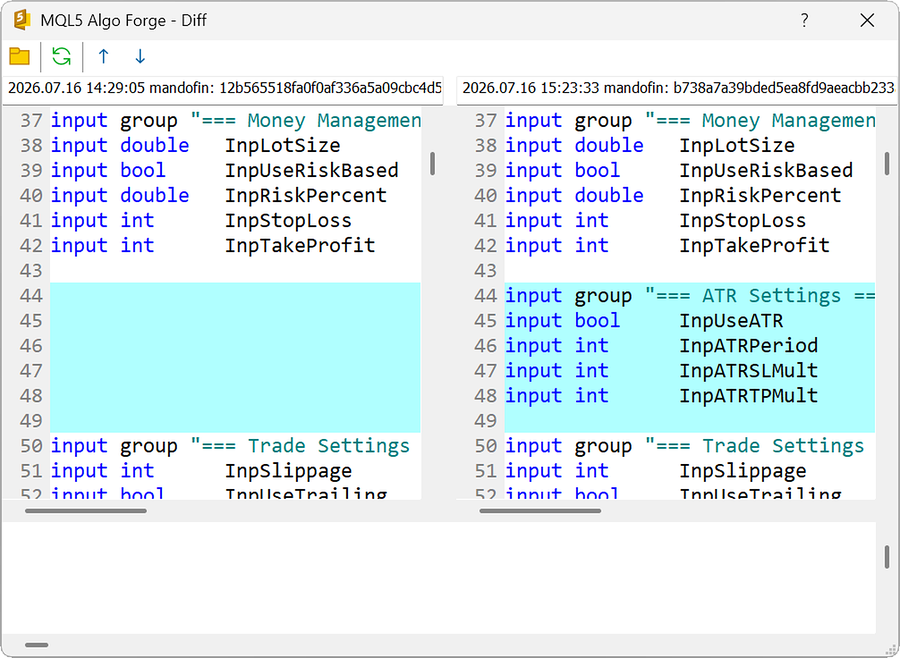
Green highlights show modifications.
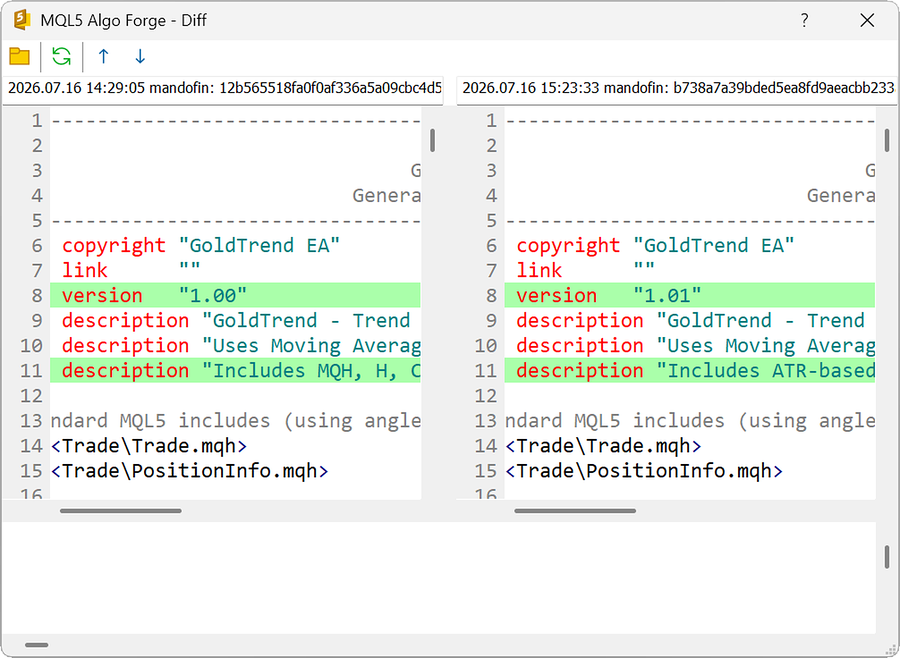
Red highlights show deletions.
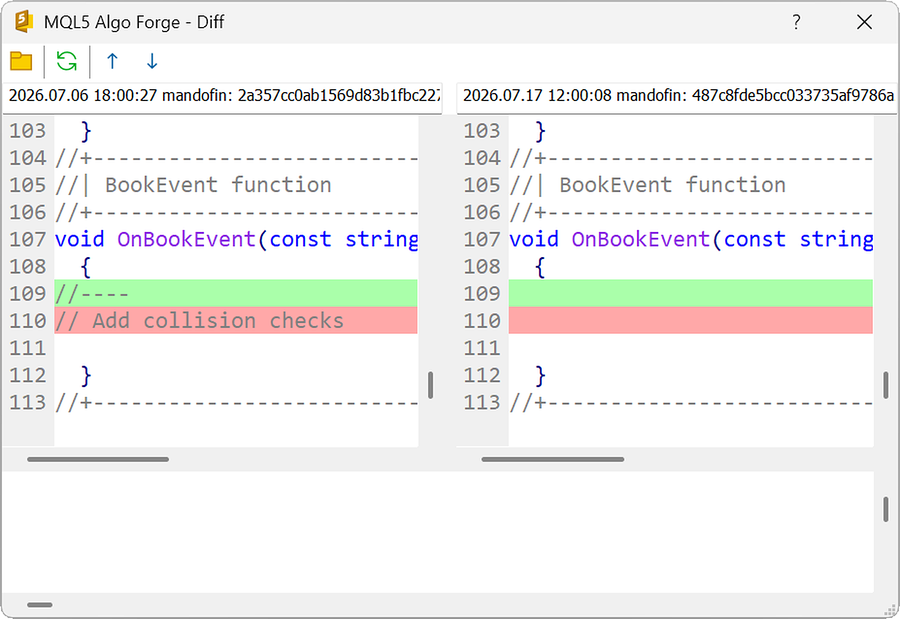
Placing the cursor on a highlighted line displays the specific changes, line after line, in the bottom section.
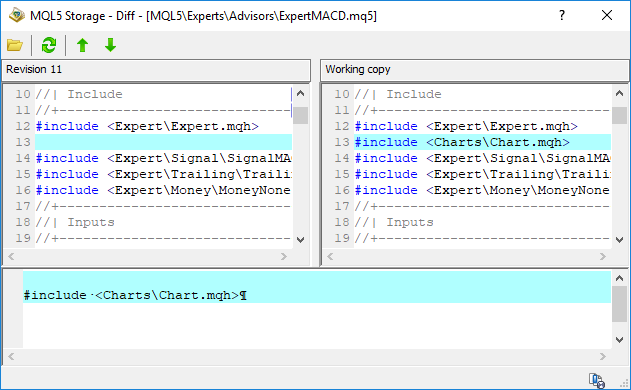
Toolbar #
The following commands are available in the toolbar:
 – select any two files for comparison.
 – refresh the files, which is useful if you edited the file while comparing the changes.
 – go to the previous change in the file.
  – go to the next change in the file.
Comparing Two Files #
In addition to reviewing differences across commits, MetaEditor supports direct comparison between two files.
Click from the toolbar, use the "Browse" buttons to select the two files you want to compare and click "OK".
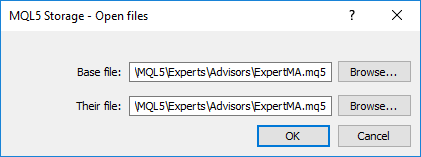
A new window showing the line-by-line differences between the files will open.