
External Git Client
MQL5 Algo Forge is a Git-based storage system. After you complete initial steps and with Git installed on your computer, you can start using any external Git client.
The most popular Git clients include TortoiseGit, GitHub Desktop, Visual Studio Code built-in Git integration, GitKraken, Sourcetree, and others. These programs make it easy to run Git commands, resolve conflicts, and handle complex tasks.
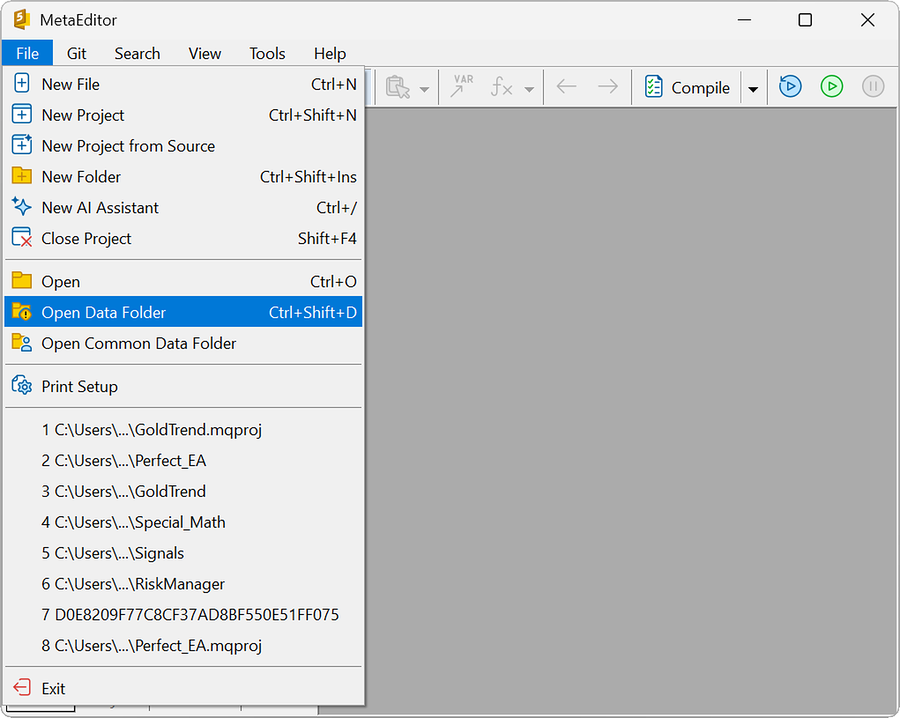
By default, MetaEditor enables Git only for specific folders. Knowing these folders and how they work is critical. In the top menu of MetaEditor, click "File", then select "Open Data Folder".
You will be directed to your terminal's instance in File Explorer. The MQL5 folder should be visible there.
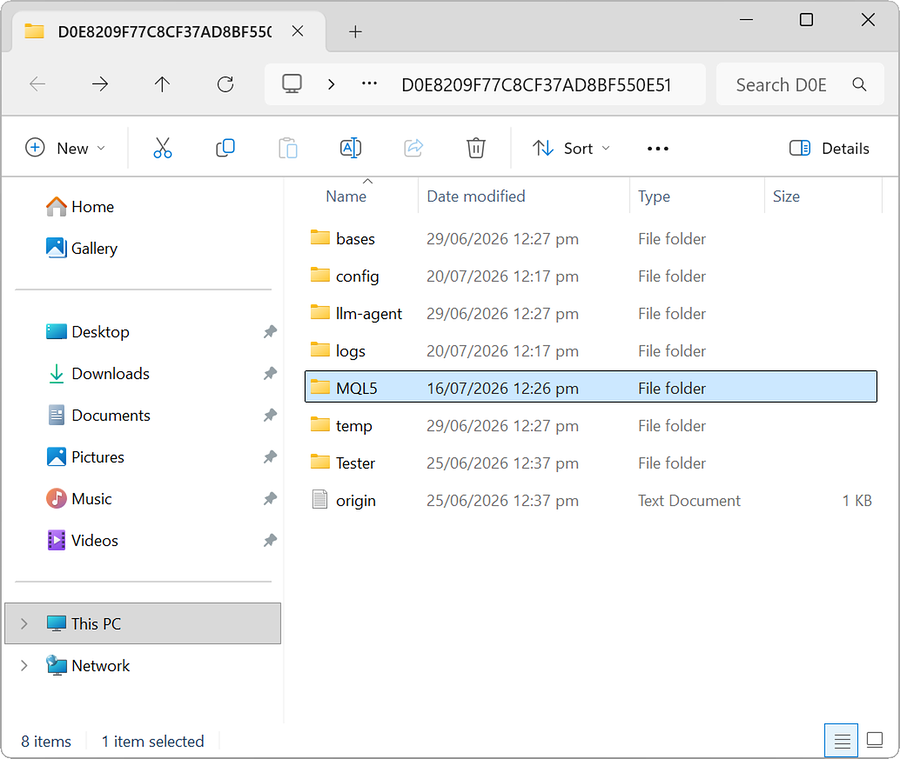
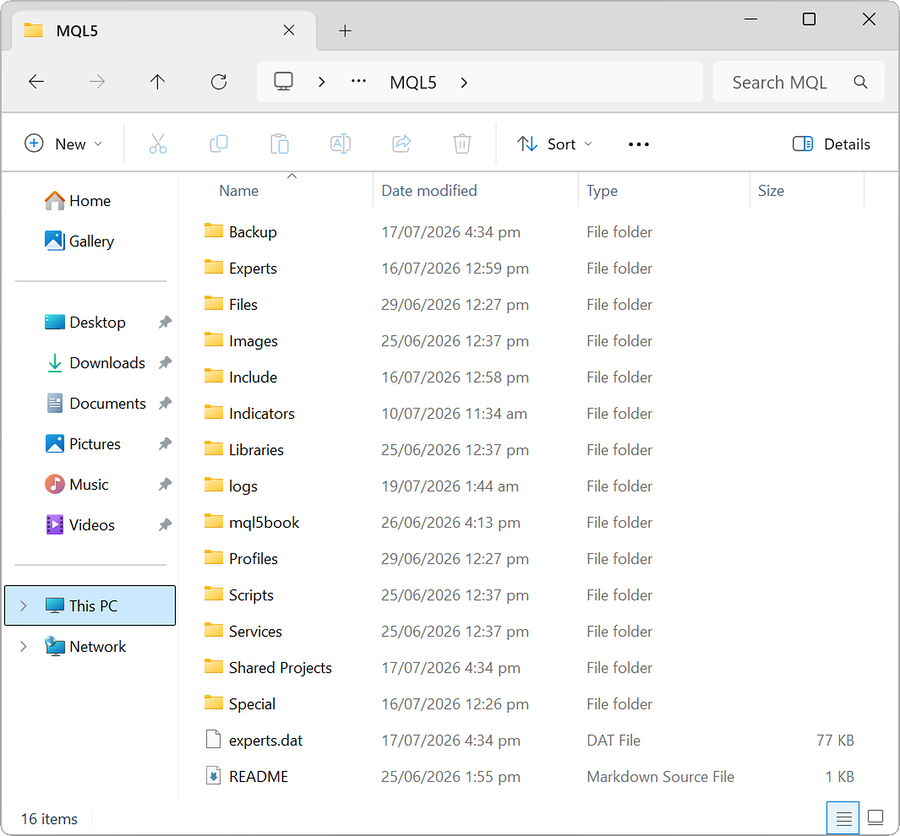
MQL5 Folder #
The MQL5 directory is the primary data folder for algorithms. By default, most files or folders inside the MQL5 directory are not tracked by Git until you explicitly add them. When you run the add command on a file or folder under MQL5 in MetaEditor's Navigator, the items are added as a commit and pushed to the remote mql5 repository.
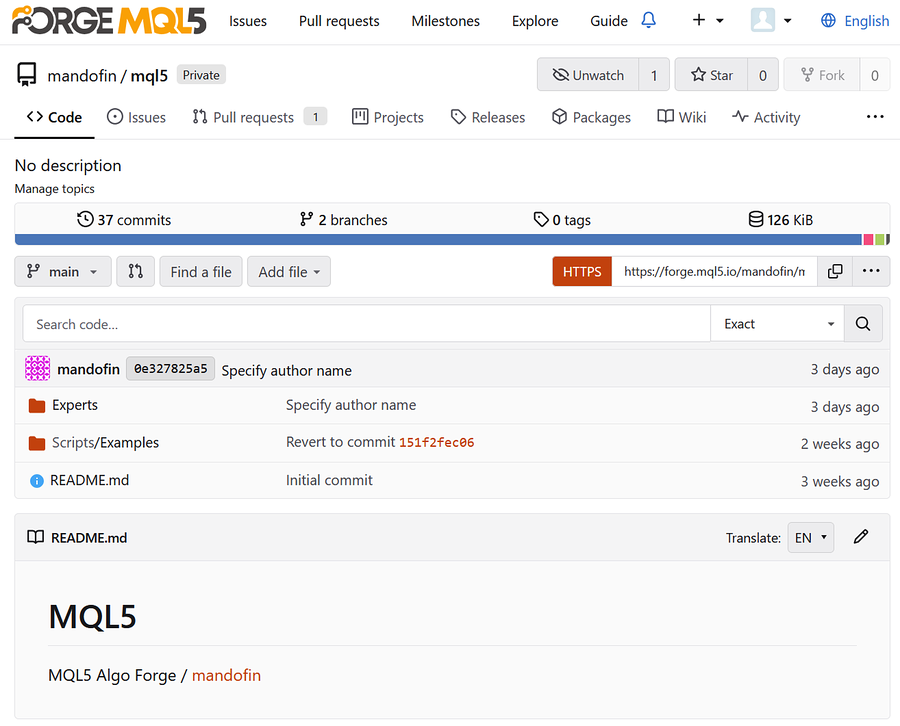
The MQL5 directory functions as a private repository connected to the remote mql5 repository under your account on the MQL5 Algo Forge website.
Shared Projects Folder #
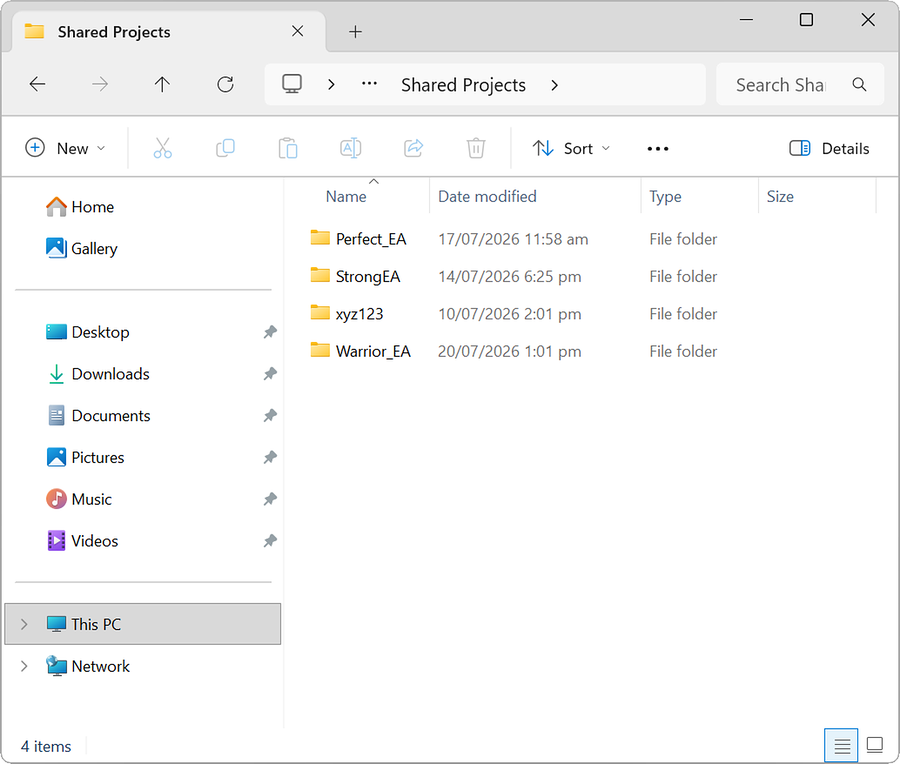
The Shared Projects directory is in the root of the MQL5 folder, but its contents are independent of its containing repository. The Shared Projects folder houses individual repositories, each with their own .git folders, branches, etc.
When you fork a public project on the MQL5 Algo Forge website, your forked copy becomes a standalone repository under your account.
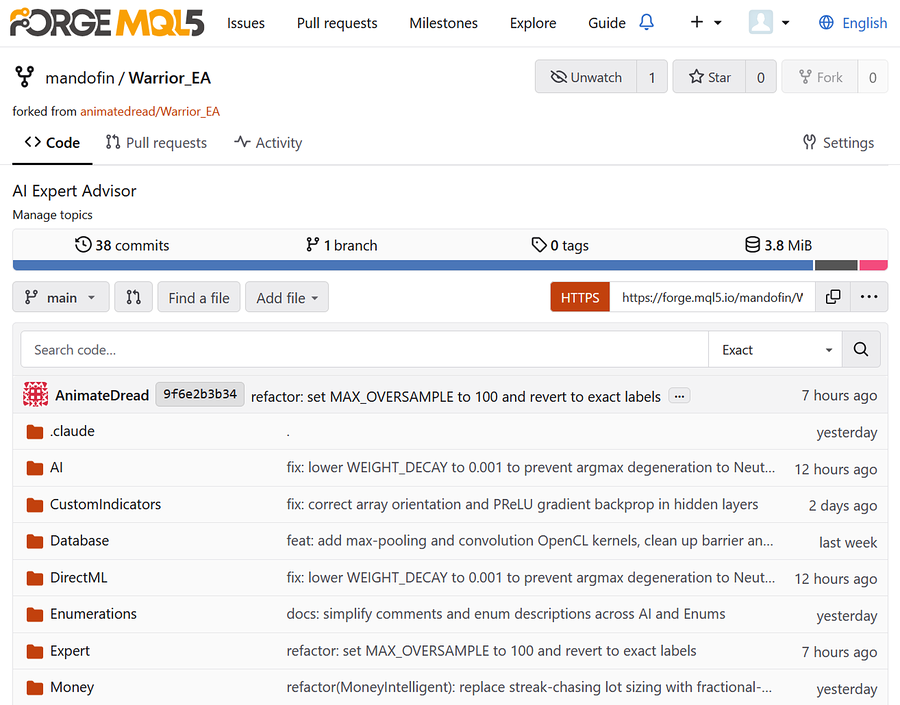
Refreshing Shared Projects in MetaEditor reveals the new repository there. Cloning the new repository downloads and saves the project files to the local Shared Projects folder.
Local Git Configuration #
MetaEditor uses your MQL5 login as the Git user.name and your-mql5-login@forge.mql5.io as the user.email when committing changes. An external Git client, however, will default to your global Git configuration.
Before making your first commit via an external Git client, you need to set the user.name and user.email for each local repository to the same details used by MetaEditor. This prevents incorrect attribution of commits and related problems.
Open any terminal and navigate to the repository using this command:
cd /path/to/your/repository
Run this command to set your name:
git config user.name "your-mql5-login"
Run this command to set your email:
git config user.email "your-mql5-login@forge.mql5.io"
Alternatively, you can use built-in UI tools in your Git client to set the local Git configuration for a project. See your Git client's documentation (TortoiseGit, GitHub Desktop, GitKraken) for more details.
Credentials for MQL5 Algo Forge #
MetaEditor automatically uses the active MQL5 session when interacting with the remote server of MQL5 Algo Forge. An external Git client, however, will request your credentials when it needs to communicate with the remote, e.g., when pulling or pushing changes.
When prompted for credentials in the Git client, enter your MQL5 login and password. What happens next depends on the Git client or its version.
Many Git clients, including TortoiseGit, VS Code, and GitHub Desktop, will try to save your credentials using the built-in Git Credential Manager (GCM). If successful, your credentials will be passed and stored inside the native Windows Credential Manager.
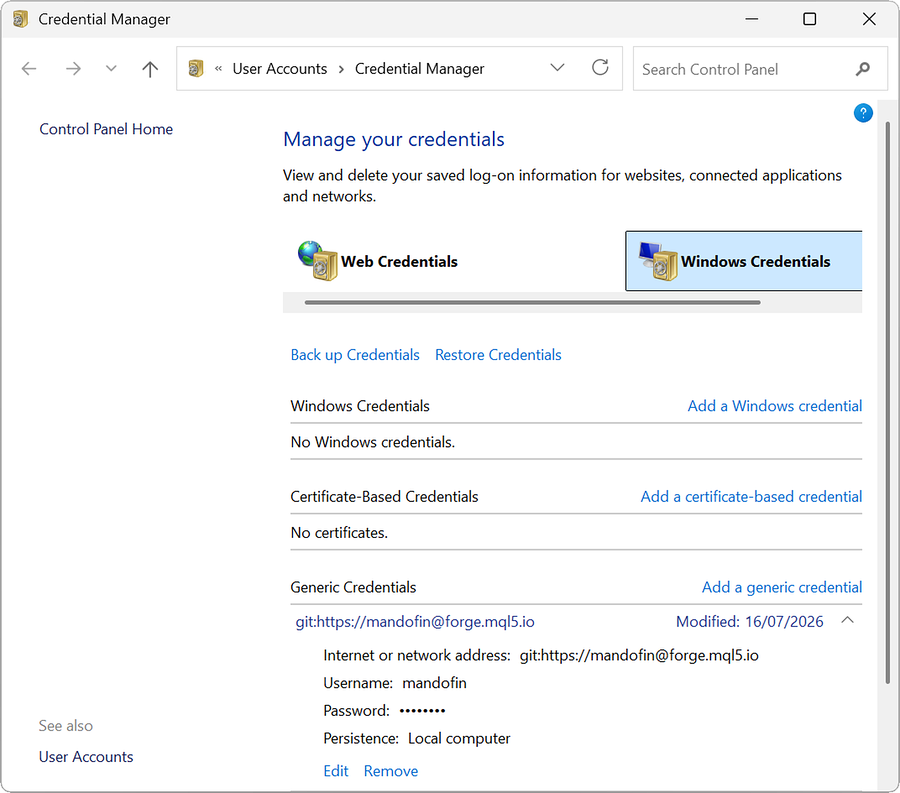
Some Git clients, including TortoiseGit and GitKraken, will try to save your credentials using their app environment or internal account manager. In this case, you need to consult your Git client's documentation for more details.
Saving your MQL5 credentials enables the Git client to interact with the remote server without having to ask you to enter your MQL5 login and password each time.
Once you set the correct git configuration and save your credentials, you can start using the external Git client to perform any supported operation.