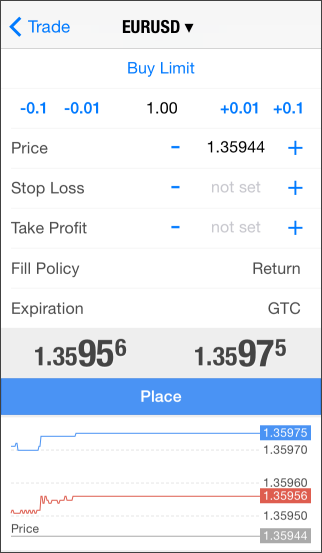
- Price – price at which the pending order should trigger. For stop and limit orders this is the price, at which they will be placed. For Stop Limit orders, this is the price of triggering and setting of limit orders at the level specified in 'Stop Limit Price'.
- Stop Limit Price – this field is active only for Stop Limit orders. When the Stop Limit order triggers, a limit order will be placed at the price specified in it.
- Stop Loss – the level of Stop Loss. If you leave this field empty, this type of order will not be set.
- Take Profit - Level Take Profit. If you leave this field empty, this type of order will not be set.
- Fill Policy – additional rules of filling for limit and stop-limit orders: Fill or Kill, Immediate or Cancel, Book or Cancel, or Return. If this box is unavailable, then the option is locked on the server;
- Expiration – conditions of the order expiration:
- Good Till Canceled (GTC) – the order will stay in the queue until it is manually canceled.
- Today – the order will be valid only during the current trading day.
- Date and Time – the order will be valid until the specified date. When selecting this option, you will automatically switch to the date and time specification. To return to choosing the expiration type, remove the expiration date.
- Date – the order will be valid until 00:00 of the specified day. If this time is not within a trading session, expiration will occur in the nearest trading time.
- The 'Place' button is inactive if any of the parameters is incorrect.
- Stop Loss and Take Profit orders only trigger for open positions, not for pending orders.
- If the 'Execution' and 'Expiration' fields are inactive, it means the possibility to change them is disabled on the server.
|
|
|
Advanced Mode #
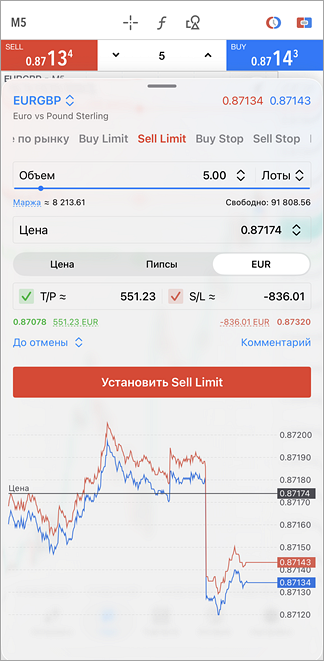
This mode is used when placing pending orders directly from the chart. It provides additional tools for calculating volume and risk.
Working with the Dialog
The trading dialog can be minimized, expanded, or stretched to full screen by dragging it up or down, or by using the buttons / /  in the header. Tapping once on an empty area of the chart minimizes the dialog, and tapping again hides it completely. in the header. Tapping once on an empty area of the chart minimizes the dialog, and tapping again hides it completely.
Instrument and Prices
The top section displays the selected trading instrument and its current prices. To switch instruments, click the current instrument name.
Order Type
Use the menu to switch between pending order types. In this field, you can also switch to placing a market order.
Volume
You can specify order volume in two modes:
- Lots – one lot represents a specific number of units of the base asset, defined by the 'Contract size' parameter in the instrument specification. For example, if the contract size is 100,000 units, a volume of 0.01 lots equals 1,000 units of the asset.
- Margin – in this mode, volume is specified as the approximate amount of margin that will be reserved in your account if the pending order is triggered and executed. In fact, this is the amount of margin for a future market position.
|
For each mode, the application displays the corresponding value in the alternative mode. For example, if you set the volume in lots, the approximate required margin is shown immediately.
Volume can be specified in several ways:
- Using the slider below the field. Minimum and maximum allowable values are calculated automatically.
- Manually via keyboard – tap the current value and enter a new one.
- Using the adjustment panel opened by the arrow button. Suggested increment steps adapt dynamically depending on the current value.
- Volume changes are synchronized with the quick trading panel. If you change the volume in the trading dialog, it updates in the panel and vice versa.
- The last used volume is saved after order submission. When creating a new order, the saved values are automatically loaded into the dialog. Only the most recent value is stored; volume values are not saved separately for each symbol.
Price
Set the trigger price for the pending order. For stop and limit orders, this is the price at which the orders will be placed. For Stop Limit orders, this is the price at which limit orders will be triggered and placed at the level specified in 'Stop Limit Price'.
Take Profit and Stop Loss
Take Profit and Stop Loss levels can be set in several modes:
- Price – the instrument price at which the order should execute.
- Pips – the distance from the order price in pips.
- Currency – an approximate monetary amount in the deposit currency that you will gain or lose when the level is triggered. When entering a desired value, the actual calculated amount is displayed below. This may not exactly match the entered value due to price increments.
For each mode, the application displays the corresponding value in the alternative mode. For example, if you set levels in pips, you will immediately see the corresponding price and the approximate amount you will gain or lose if the level is triggered (if nonzero).
When setting levels in pips, you can lock the Take Profit to Stop Loss ratio. To do this, set both levels, then tap  . Now, adjusting one level will automatically update the other according to the specified ratio, including when moving levels on the chart. This setting is retained for future orders until it is changed or disabled. . Now, adjusting one level will automatically update the other according to the specified ratio, including when moving levels on the chart. This setting is retained for future orders until it is changed or disabled.
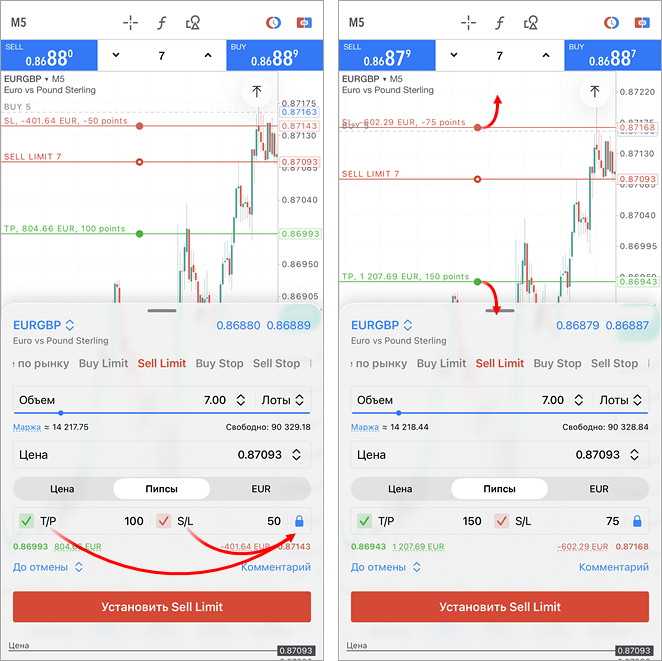
Levels can be set in multiple ways:
- Directly on the chart – for this, you should temporarily minimize the trading panel to adjust levels. Moving levels near chart edges will automatically rescale the chart, providing access to a wider price range.
- If stop levels are set in pips or currency, they will automatically move by the same amount when the order price changes. This also respects the locked ratio of levels if enabled.
- Manually via keyboard – tap the current value and enter a new one.
- Using the adjustment panel that opens when you tap on the field with a checkmark. Suggested increment steps adapt dynamically depending on the current value.
To remove a level, either clear the value in the corresponding field or tap on the checkmark and then the icon  in the panel that appears. in the panel that appears.
- The entered Take Profit and Stop Loss values are saved after submitting an order. When placing a new order, previously used values will be automatically loaded into the dialog. Only the most recent value for each level is stored; values are not saved separately for each symbol. Saved values are stored in pips and converted to prices when applied, ensuring levels remain accurate even if the instrument price changes.
- When switching instruments, previously saved levels may be too far from the current price and may not appear on the chart. In this case, adjust the levels manually or remove and re-add them. By default, levels are placed within visible chart range.
Additional Parameters
At the bottom of the dialog, you can specify additional parameters:
- Order expiration time.
- Order execution mode, if supported by the broker.
- A text comment to the order. It will be displayed in the trade section. The maximum comment length is 31 symbols. The broker or server may modify the comment.
Tick Chart and Order Placement
For additional price control when placing an order, a tick chart of the instrument is displayed at the bottom of the dialog.
After setting all the required parameters, place the order using the corresponding button. If any value in the dialog is incorrect, the corresponding field is highlighted in red. Also, if the price or stop levels are incorrect, the order placement button becomes inactive.
|