- Trading Principles
- Opening and Closing Positions
- Close By
- Modifying a Position
- Placing Pending Orders
- Managing Pending Orders
- Bulk Operations
- Trading Report
Opening and Closing PositionsOpening a position (entering the market) is the initial purchase or sale of a specified volume of a financial instrument. To do this, you must place a market order, which results in the execution of a deal. A position may also be opened when a pending order is triggered. An order can be placed in several ways:
Placing an Order and General ParametersAfter opening the new order dialog, specify the following parameters: |
|
|
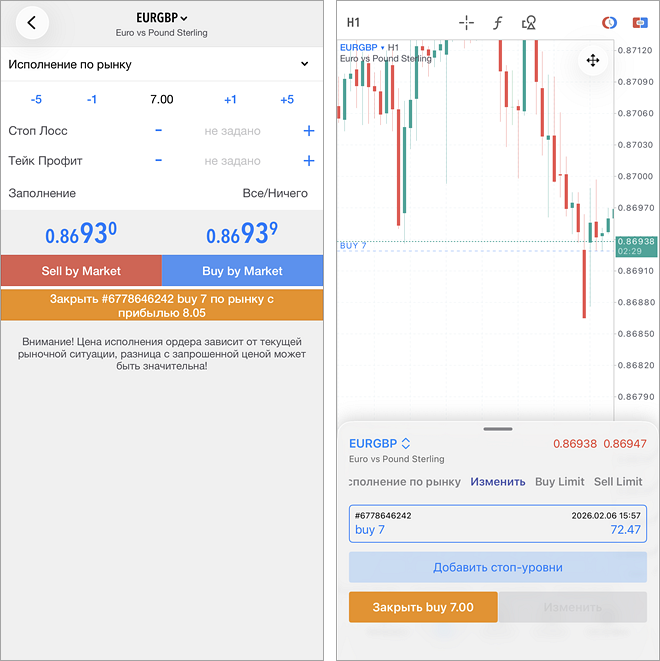
Depending on the instrument's execution type, additional parameters may be available in the order placing window. Execution types are described below. Tap Buy to place a buy order or Sell to place a sell order. Once an order is sent, its execution results will appear in the window: either confirmation of a successful trade or a rejection with the reason specified. Once the order is executed, the relevant open position record will appear on the Trade tab, as well as the order and the resulting deal(s) will appear in the History tab. |
||
|
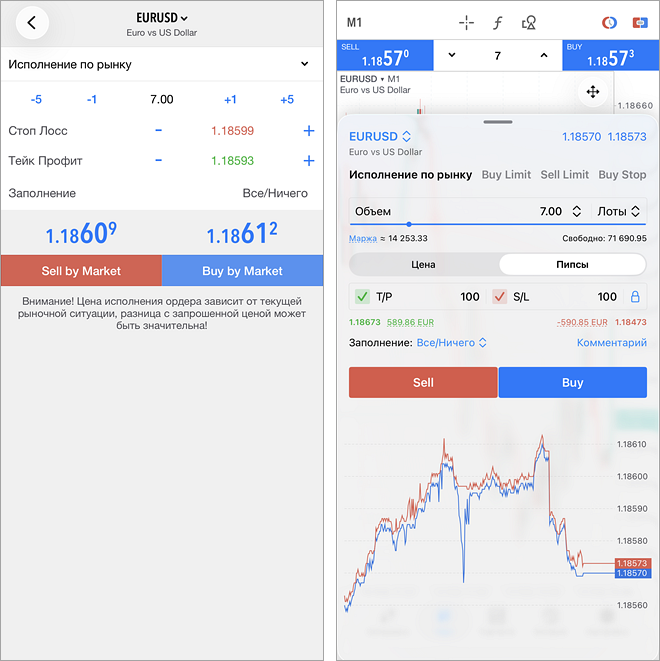
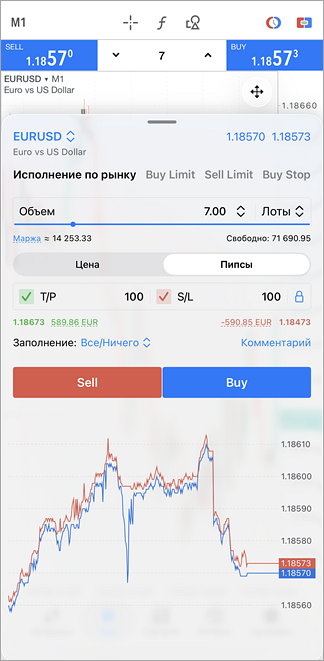
Advanced Mode #This mode is used when opening positions from the chart. It provides additional tools for calculating volume and risk. Working with the DialogThe trading dialog can be minimized, expanded, or stretched to full screen by dragging it up or down, or by using the buttons Instrument and PricesThe top section displays the selected trading instrument and its current prices. To switch instruments, click the current instrument name. Order TypeUse the menu to switch between placing a market order and creating a pending order. VolumeYou can specify order volume in two modes:
|
|
For each mode, the application displays the corresponding value in the alternative mode. For example, if you set the volume in lots, the approximate required margin is shown immediately. Volume can be specified in several ways:
Take Profit and Stop LossTake Profit and Stop Loss levels can be set in several modes:
For each mode, the application displays the corresponding value in the alternative mode. For example, if you set levels in pips, you will immediately see the corresponding price and the approximate amount you will gain or lose if the level is triggered (if nonzero). When setting levels in pips, you can lock the Take Profit to Stop Loss ratio. To do this, set both levels, then tap
Levels can be set in multiple ways:
When opening new positions, stop levels are set adaptively to prevent errors:
To remove a level, either clear the value in the corresponding field or tap the checkmark and then the icon
Additional ParametersAt the bottom of the dialog, you can specify additional parameters:
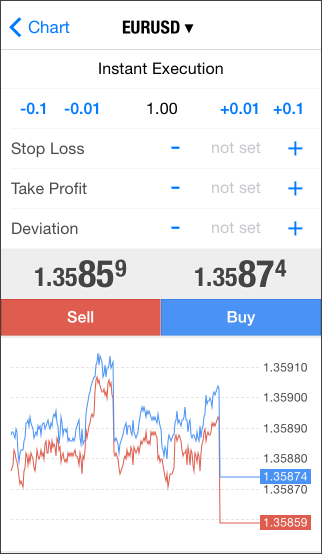
Tick Chart and Position OpeningFor additional price control when opening a position, a tick chart of the instrument is displayed at the bottom of the dialog. Click Buy to send a buy order or Sell to send a sell order. If any value in the dialog is incorrect, the corresponding field is highlighted in red. Trading buttons become inactive if the volume or stop levels are invalid. Instant Execution #In this mode, a market order is executed at the price quoted by the broker. When sending an execution request, the platform automatically inserts the current price into the order. If the broker confirms the price, the order is executed. In this mode, the trader may specify an additional parameter – Deviation. This defines the maximum acceptable difference between the requested price and the execution price. The larger the allowed deviation, the lower the likelihood of receiving a requote. If the price deviation is within the specified limit, the order is executed at the new price without additional confirmation.
|
||
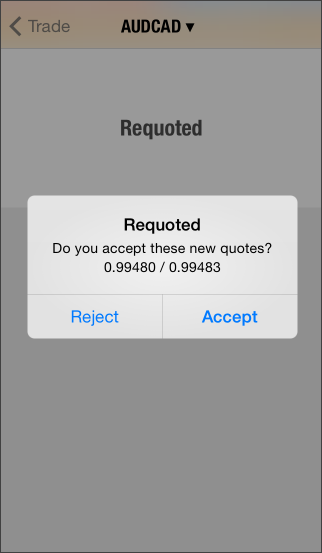
If, during order processing, the instrument price changes by more than the value specified in the Deviation field, the dealer (server) may reject the order and provide new execution prices. In this case, a corresponding message will appear in the order window. If you agree with the new prices, tap Accept, and the order will be executed at the updated price. If you do not accept the new price, tap Reject. The new prices remain valid for only a few seconds. If you do not make a decision within this time, the message "Price changed" will appear. After clicking OK, you will return to the original order placement window. |
|
|
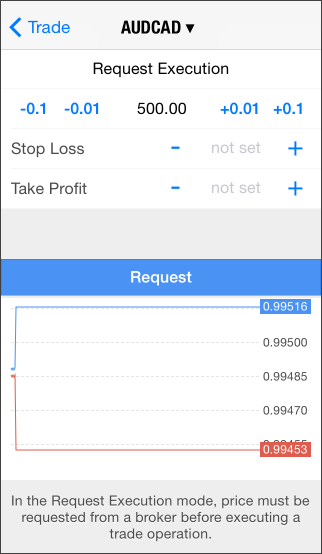
Request Execution #In this mode, a market order is executed at a price previously received from the broker. Before submitting a market order, the platform requests execution prices from the broker. After receiving them, the trader may either confirm or reject execution at the quoted price. Order parameters can be modified only before requesting prices. Once a price request has been sent, the trader can only place the order using the predefined parameters. To request prices, tap Request. After that, the Buy and Sell buttons will appear in the dialog. The quoted prices are valid for only a few seconds. If no decision is made within that time, the Buy and Sell buttons will disappear again.
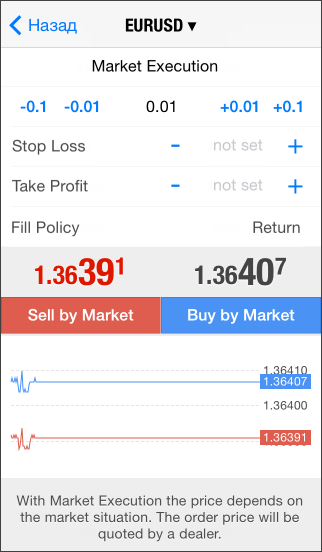
Market Execution #In this mode, the broker determines the execution price without additional confirmation from the trader. Sending a market order in this mode implies prior acceptance of the execution price. In the 'Fill Policy', additional order filling rules can be specified: Fill or Kill, Immediate or Cancel. If the field is inactive, the selection is restricted by the server. By tapping on 'Sell by Market' or 'Buy by Market', an instruction is sent to the broker to execute the respective sell or buy transaction at the price determined by the broker.
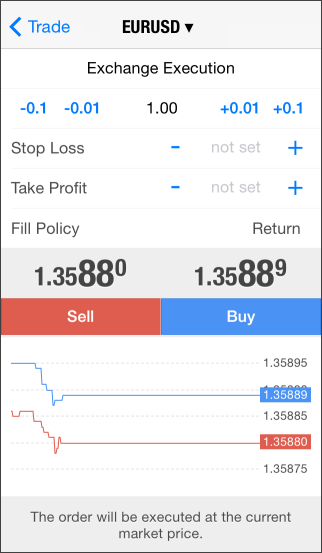
Exchange Execution #In Exchange Execution mode, trading operations are routed to an external trading system (exchange). In the 'Fill Policy', additional order filling rules can be specified: Fill or Kill, Immediate or Cancel. If the field is inactive, the selection is restricted by the server. By tapping on 'Sell by Market' or 'Buy by Market', an instruction is sent to the broker to execute the respective sell or buy transaction at the price determined by the broker.
Closing a Position #In order to obtain profit from exchange rate differences, a position must be closed. Closing a position involves executing a trade opposite to the original one. For example, if the initial trade was the purchase of one lot of GOLD, closing the position requires selling one lot of the same instrument. To fully close a position, select it in the Trade tab and open the context menu. You can also select it on the chart and use the corresponding command in the trading dialog.
In Request Execution mode, you must first request a price from the broker before closing the position. After receiving the quoted price, the close button will be available for a few seconds, during which the trader must make a decision. A position can be closed in full or in part, depending on the volume of the opposite operation. |
||
 /
/  in the header. Tapping once on an empty area of the chart minimizes the dialog, and tapping again hides it completely.
 . Now, adjusting one level will automatically update the other according to the specified ratio, including when moving levels on the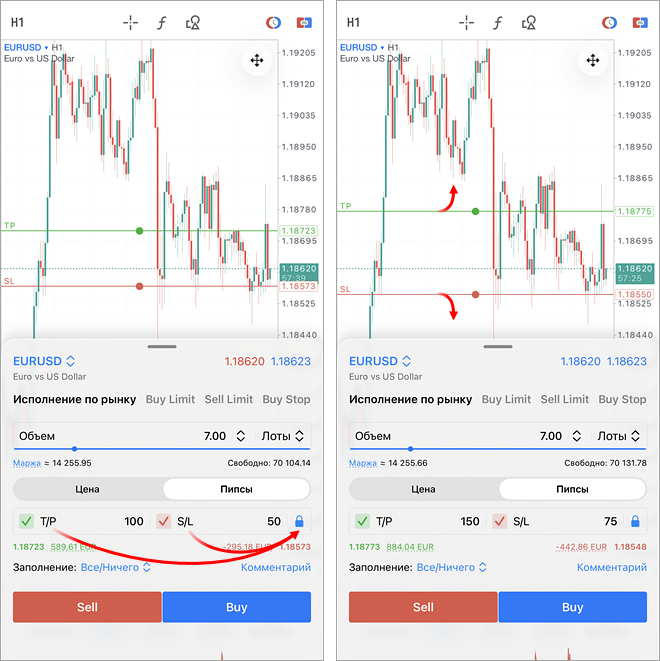
 in the panel that appears.