23 July 2026

MetaTrader 5 Build 6060: AI Integration, Passkey, and Code Management Improvements in MetaEditor
Terminal We've introduced native support for the Model Context Protocol (MCP) and agentic AI
Terminal
- We've introduced
native support for the Model Context Protocol (MCP) and agentic AI. The
new features enable an entirely new way to interact with the trading
platform: trade, analyze markets and strategies, and develop and test
Expert Advisors with the assistance of AI.
What is MCP?
The Model Context Protocol (MCP) is an open standard that enables applications to communicate with AI agents. Unlike traditional chatbots, AI agents can independently complete complex tasks by breaking them down into a sequence of actions and using the capabilities of connected applications.
With built-in MCP support, MetaTrader 5 becomes a fully featured source of market data and trading functionality for modern AI agents. They can access market information, analyze charts, work with the trading environment, and perform required operations through the standard MCP interface.
In addition to the built-in AI assistant, you can also connect external systems that support MCP, including OpenAI Codex, Claude Code, and other compatible solutions.
No setup required
To start using AI features, simply sign in to the platform using your MQL5.community account. All users will automatically receive access to the free MQL5 Lite plan. After updating, the platform automatically configures everything you need: MQL5.community is selected as the default AI provider, and the required API key is added automatically.
If you prefer, you can use your own API keys for OpenAI, Anthropic, Gemini, DeepSeek, Ollama, or other supported providers, and select your preferred model directly in the terminal settings.
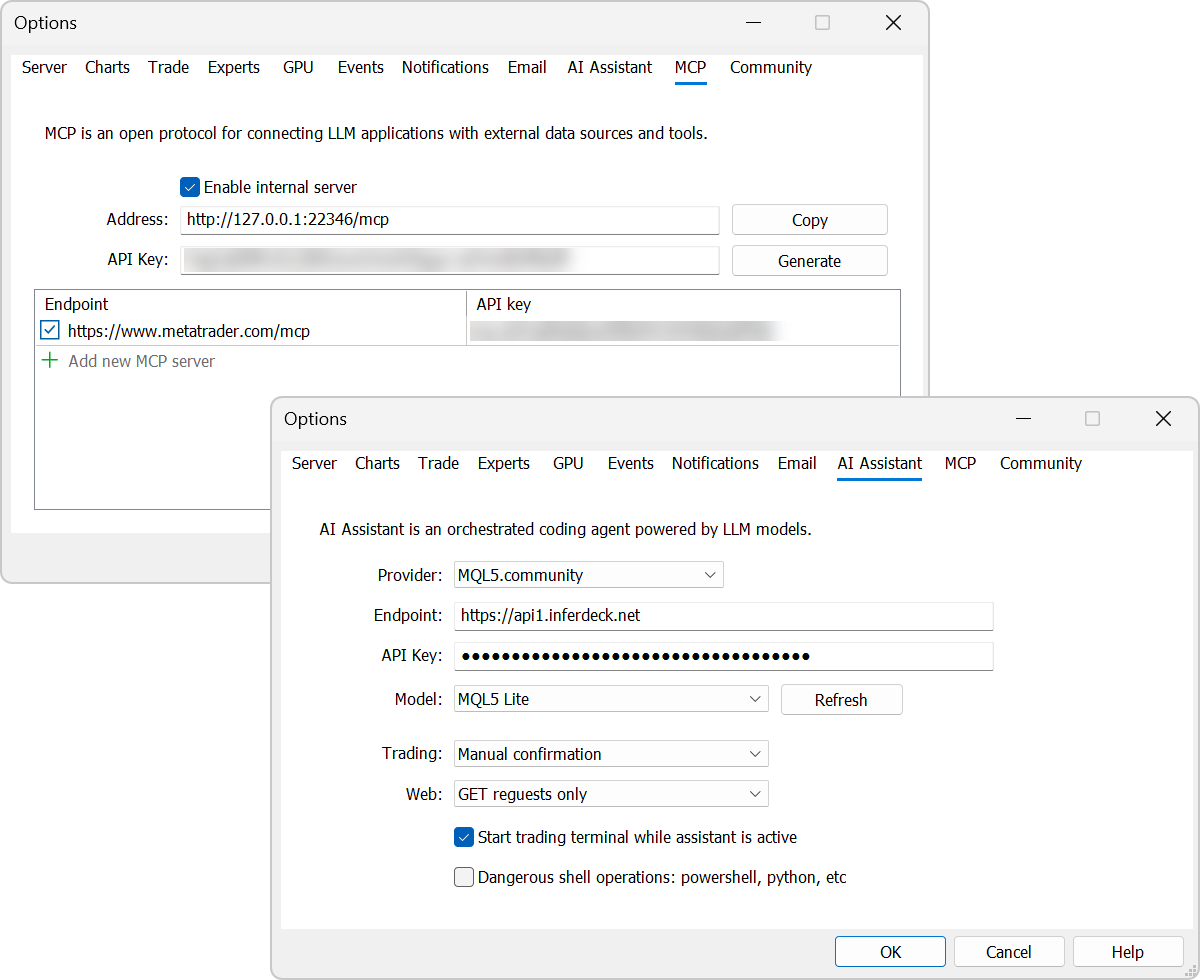
Your AI settings are automatically synchronized between the trading terminal and MetaEditor.
AI Assistant in MetaTrader 5
The built-in AI Assistant helps you analyze markets. It can explain current market conditions for a symbol, review your open positions, analyze your trading history, answer questions about financial instruments, and provide context on recent market events.
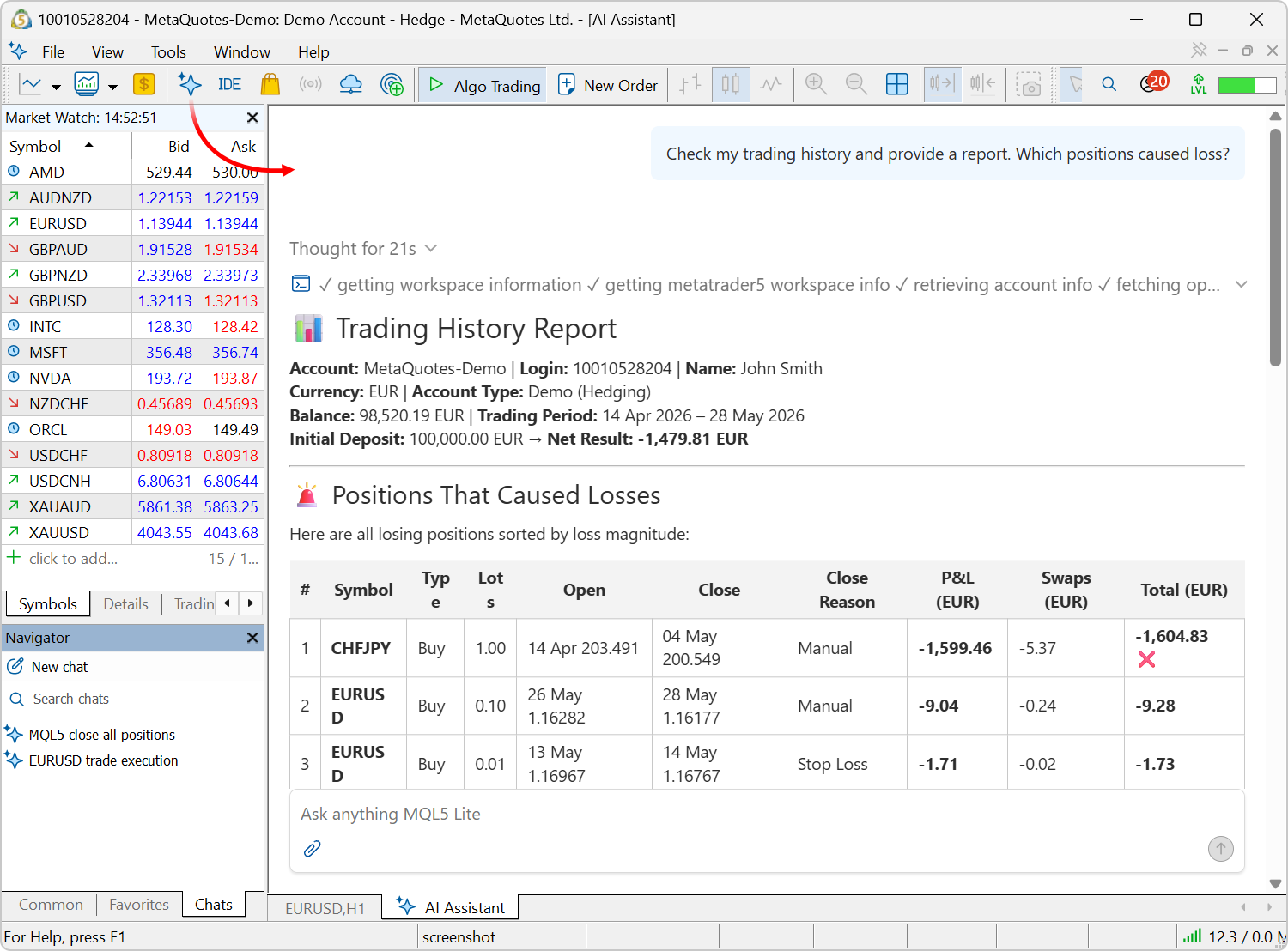
Example prompts:
- Analyze the current EURUSD situation on the H1 timeframe. Identify the trend, the nearest support and resistance levels, and explain what's happening in the market.
- Analyze my open positions. Which trades currently carry the highest risk, and why?
- Analyze my trading history for the last three months. Identify my most profitable trades and suggest ways to improve my trading strategy.
- Scan all symbols in Market Watch and identify those where an important level breakout or a strong trend is currently developing.
AI-generated responses are provided for informational purposes only and do not constitute investment advice. Use them as an additional analytical tool and always make trading decisions based on your own judgment.AI operations are governed by configurable security settings. You can explicitly allow or prohibit AI-initiated trading operations, or require manual confirmation. In addition, separate settings control the AI's access to network requests and command line operations.
AI Assistant in MetaEditor
The AI Assistant in MetaEditor has become a full-fledged development assistant. It can:
- Generate new MQL5 programs
- Analyze existing code
- Detect errors and suggest fixes
- Explain complex algorithms
- Assist with refactoring and project enhancement
Launch the assistant from the File menu, the toolbar, or the Navigator context menu. Then simply describe your task in natural language.
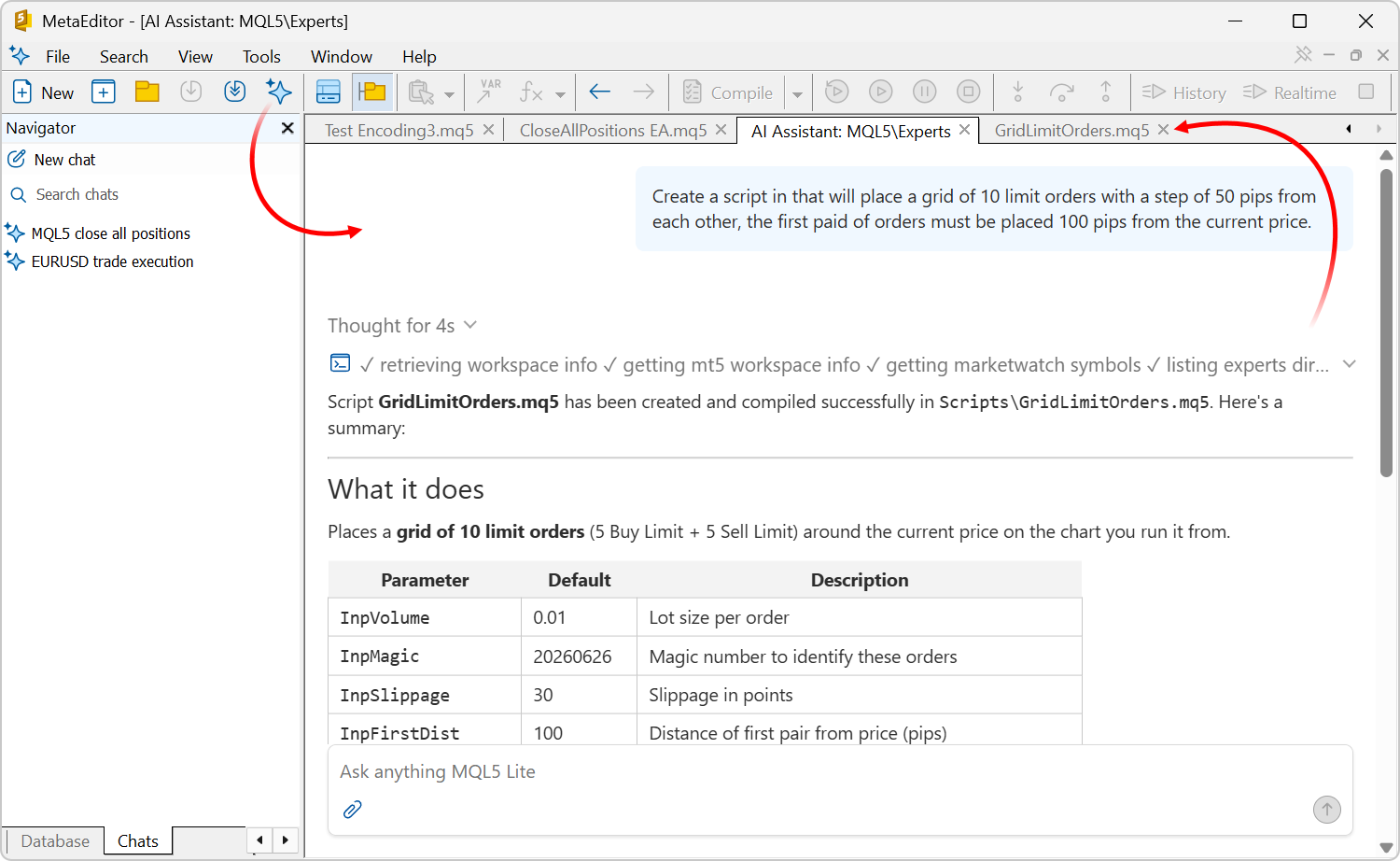
Example prompts:
- Create an Expert Advisor that opens a position when the EMA 20 crosses the EMA 50, uses a 500-point Stop Loss, a 1000-point Take Profit, and risks 1% of the account deposit.
- Analyze this MQL5 code, identify potential issues, explain their causes, and provide a corrected version.
- Optimize this indicator to reduce calculations and improve performance without changing its logic.
- Convert this MQL4 Expert Advisor to MQL5 using modern language features and the Standard Library.
- Explain how this Expert Advisor works. Describe its trading logic, the indicators it uses, its entry and exit conditions, and any potential weaknesses in the strategy.
The more detailed your request, the more accurate and useful the generated results will be.
Your conversation history is available in the Chats tab of the Navigator.
- Added Passkey authentication support. It is a modern technology that
significantly improves trading account security. Passkeys protect
against phishing attacks and credential theft: even if an attacker
obtains your account login and password, they will not be able to access
your account without confirmation from your registered device or
hardware security key.
Enabling and using Passkeys
Passkey support is enabled on the broker side. If Passkey authentication is available for your trading account, the terminal will prompt you to create a Passkey the first time you connect after entering your login and password. Basic login and password authentication remains available. The Passkey serves as an additional authentication factor.
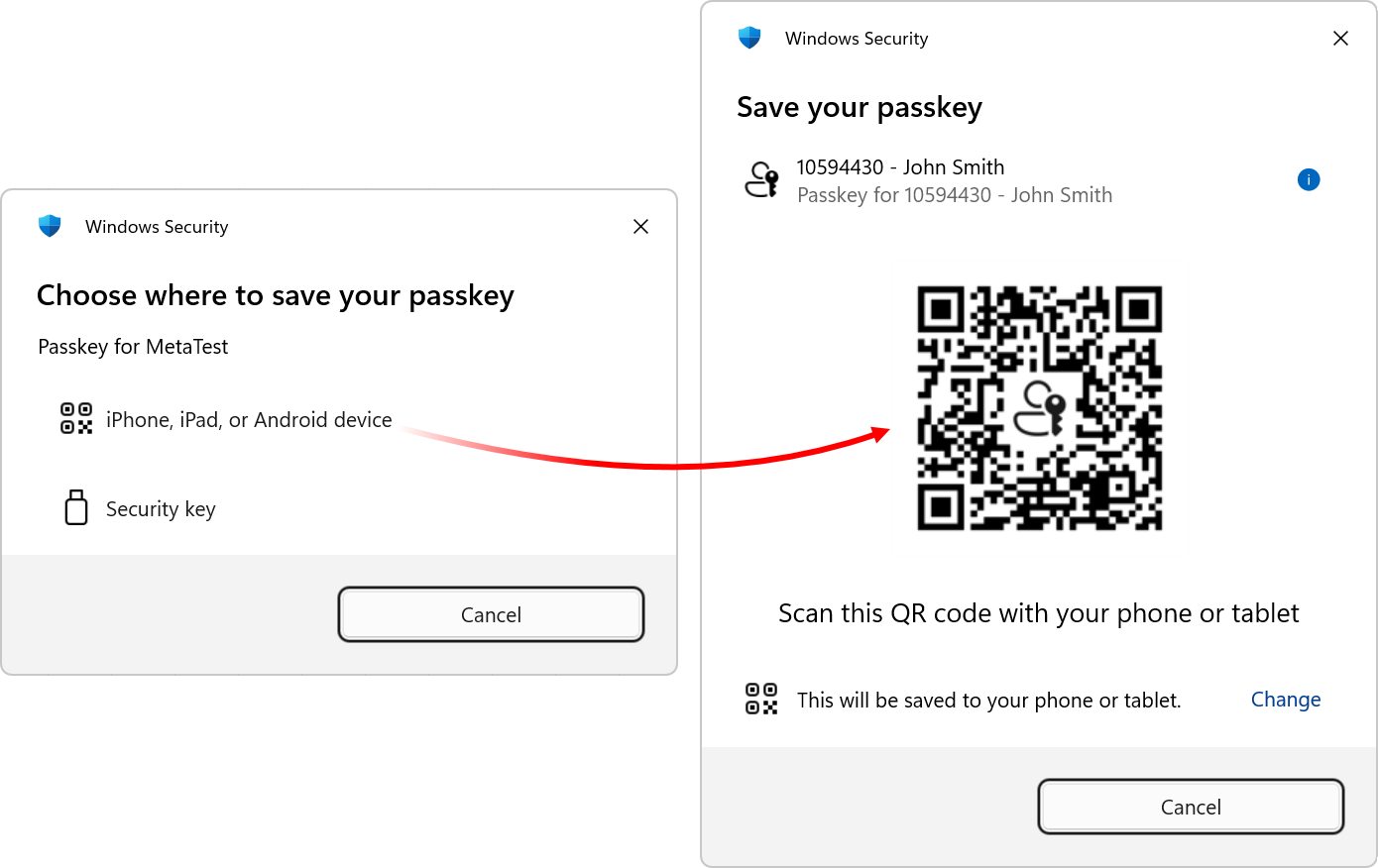
You can save your Passkey in one of two ways:
- On a mobile device — scan the QR code displayed in the terminal using your smartphone and select 'Save Passkey' on your mobile device.
- On a hardware security key — connect a compatible FIDO2 security key to your computer and follow the on-screen instructions.
To use a Passkey stored on a mobile device, your computer must support Bluetooth. Bluetooth is used to verify the physical proximity of your mobile device. This is done to prevent attackers from remotely authenticating by sending you a QR code.Once registered, the Passkey will be required every time you connect to your account after you enter your login and password:
- If the Passkey is stored on a mobile device, scan the QR code with your phone and confirm the sign-in.
- If you use a hardware security key, connect it to your computer to complete authentication.
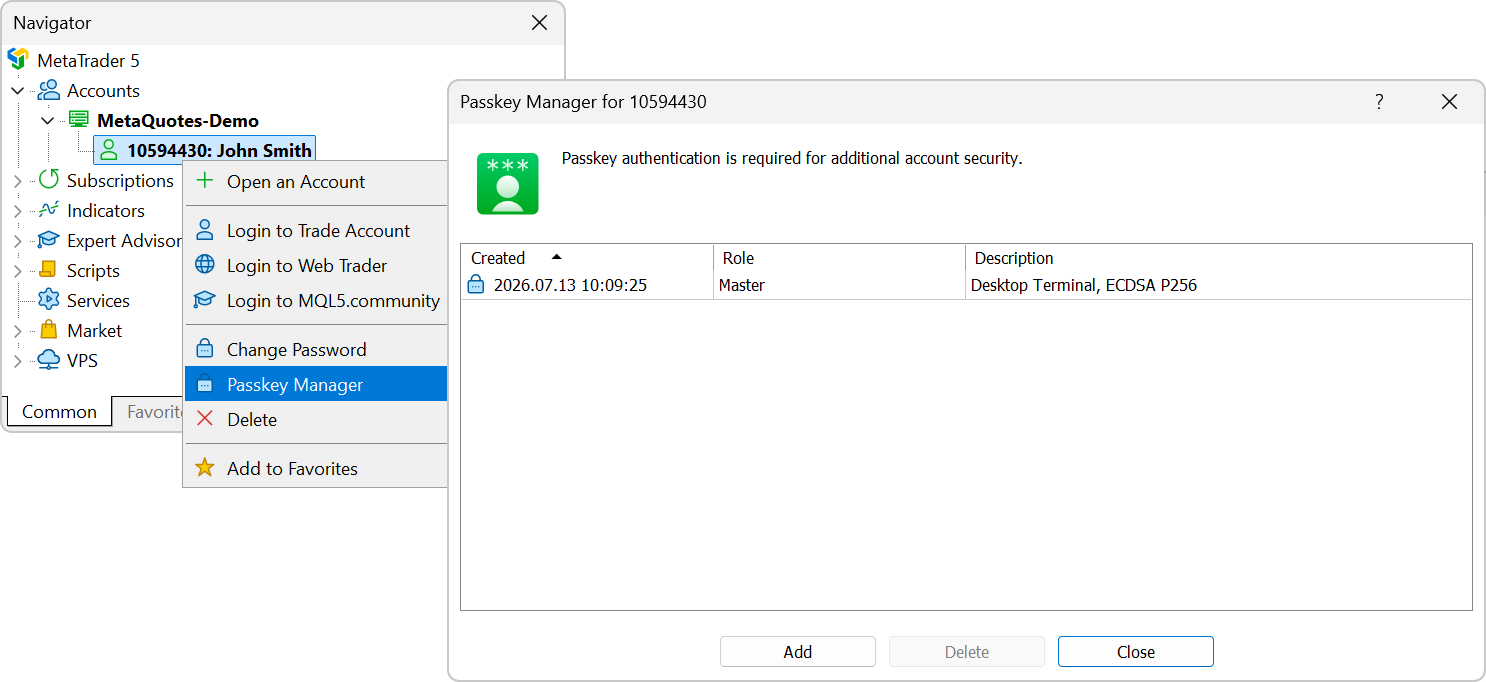
If necessary, you can remove a registered Passkey. To do this, select 'Passkey Manager' from the account context menu in the Navigator window. The next time you connect, you'll be prompted to register a new Passkey.
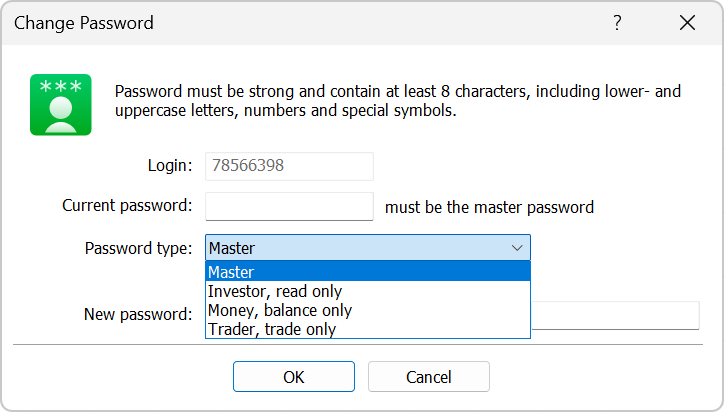
- Added support for new account access levels:
- Trader — allows trading but prohibits password changes and deposits or withdrawals.
- Money manager — allows deposits, withdrawals, and transfers between accounts, but prohibits trading and password changes.
Separate passwords are required to access these account modes. You can configure them using the password change dialog:
- Fixed initialization of the trading dialog for symbols using Instant Execution. Under certain conditions, the dialog could appear empty if the previously entered volume value exceeded the threshold at which trading switches to Request Execution.
- Fixed calculations for the Regression Channel graphical object.
- Removed support for publishing trading reports via FTP. This legacy feature is deprecated and is no longer widely used.
- Help: Added keyboard shortcut support: Ctrl+Tab and Shift+Tab — sequentially switch between Help sections; Alt+Right/Left — switch to the next or previous viewed page.
- Updated user interface translations.
MQL5
- Optimized and significantly accelerated the TextOut function that outputs text. In some scenarios, performance is up to three times faster than in previous versions.
- Added the SymbolInfoCommissions function for retrieving commission information for trading symbols.
Each element of the 'commissions' array describes a separate commission calculation rule. General conditions for applying the commission are specified by the MqlCommission structure fields, and the specific values and ranges of the commission are represented by the 'tiers' array.int SymbolInfoCommissions( string name, // symbol name MqlCommission& commissions[] // array of commission rules );
- Added MatrixInfo method for analyzing the structural properties of matrices. It analyzes matrix contents, determines its structural type (symmetric, Hermitian, triangular, banded, etc.), and fills the MqlMatrixInfo structure.
- Added matrix and vector methods:
- Write — analyzes the matrix contents, determines its structural type (symmetric, Hermitian, triangular, banded, etc.), and writes the matrix to an open file according to the selected storage format.
- Read — reads a matrix from a file that was previously written using the Write method.
- WriteBin — writes a matrix to a file according to its size and data type.
- ReadBin — reads a matrix from a file that was previously written using the WriteBin method.
- WriteCSV — writes a matrix to a CSV file according to its size and data type.
- ReadCSV — reads a matrix from a file that was previously written using the WriteCSV method.
- Added methods for orthogonal factorizations of matrices:
- FactorizationQRTallSkinny — computes a blocked QR factorization of a tall-skinny matrix of size m by n (m>n): A = Q * R. LAPACK function LATSQR.
- FactorizationLQShortWide — computes a blocked LR factorization of a short-wide matrix of size m by n (m<n): A = L * Q. LAPACK function LASWLQ.
- FactorizationRZ — reduces a real or complex upper trapezoidal matrix A of size M by N (M ≤ N) to upper triangular form using orthogonal transformations. LAPACK function TZRZF.
- FactorizationQR2 — computes the generalized QR factorization of two matrices: A of size n by m and B of size n by p: A = Q * R, B = Q * T * Z. LAPACK function GGQRF.
- FactorizationRQ2 — computes the generalized RQ factorization of matrices A of size m by n and B of size p by n: A = R * Q, B = Z * T * Q. LAPACK function GGRQF.
- Added the SylvesterEquation
method. It solves Sylvester equations for real and complex matrices:
A*X + X*B = scale*C where A is a general m-by-n matrix and B is a
general n-by-n matrix. Uses LAPACK functions GEES and TRSYL.
- Added the LeastSquaresGaussMarkov2 method. It solves the general
Gauss-Markov linear model: minimizes the norm ∣∣y∣∣2 with a constraint
d=A⋅x+B⋅y, using a generalized QR factorization of matrices A and
B. Uses the LAPACK function GGGLM.
- Added BLAS Level 3 methods:
- BlasL3LACRM — multiplies a complex matrix by a square real matrix.
- BlasL3LARCM — multiplies a square real matrix by a complex matrix.
- Fixed an error in t-distribution quantile calculations in the MQL5 statistical library.
- Fixed initialization of the predefined _StopFlag variable for indicators.
- Added generation of the CHARTEVENT_CHART_CHANGE event when CHART_PRICE_MIN and CHART_PRICE_MAX chart properties change. To receive the event, use the OnChartEvent handler.
- Fixed handling of timeout specified at the WebRequest call.
- Fixed ObjectGetValueByTime function operation for OBJ_REGRESSION and OBJ_STDDEVCHANNEL graphical objects.
- Added MQL_LAST_OPENBLAS_ERROR value to the ENUM_MQL_INFO_INTEGER enumeration.
Most LAPACK functions in the OpenBLAS library use the integer 'info' parameter to return the execution status of a function or subroutine: whether it completed successfully, whether errors were detected in the input parameters, or whether numerical issues occurred. The MQL_LAST_OPENBLAS_ERROR constant contains the value of 'info' returned after the most recent failed OpenBLAS function call.
MetaEditor
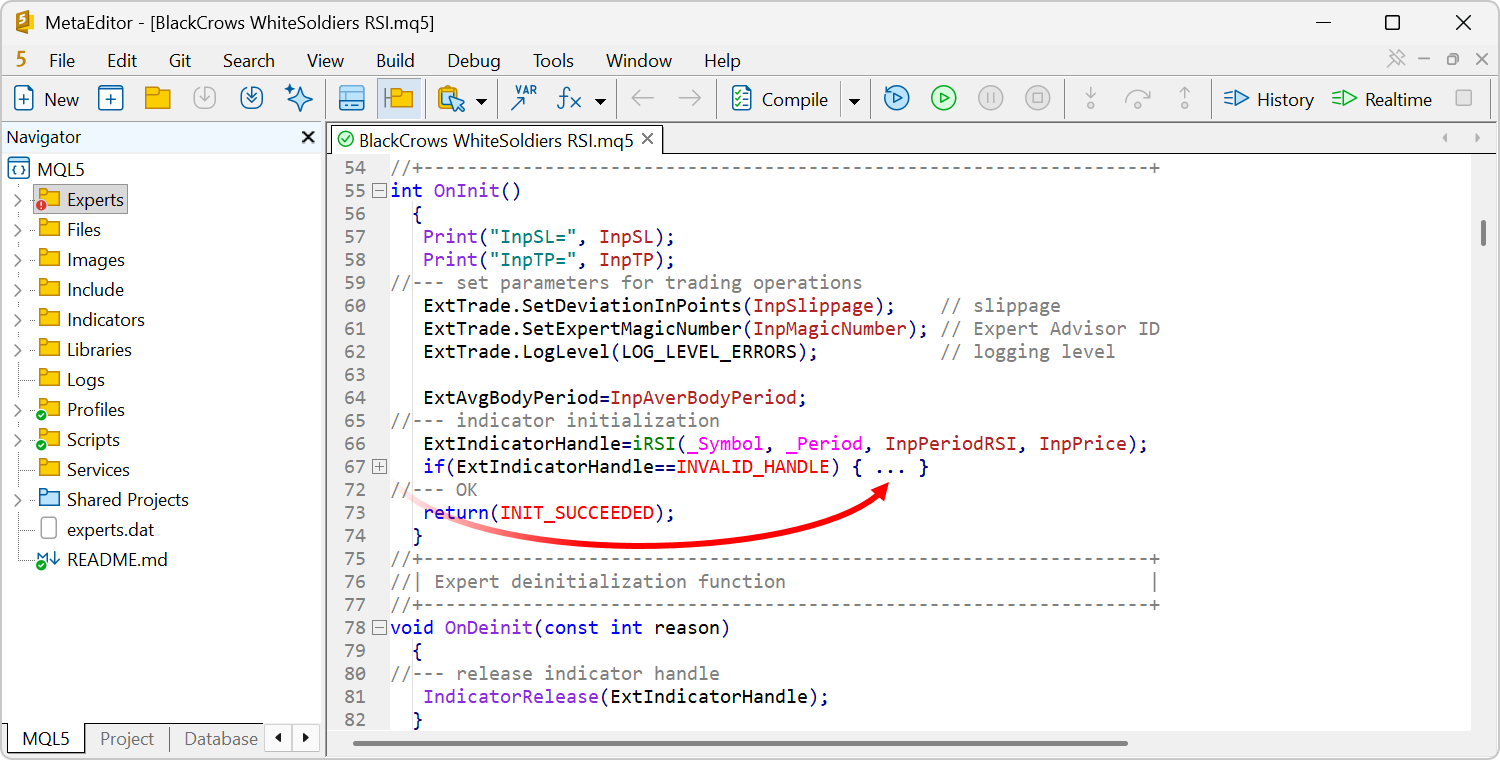
- Added code folding feature. You can now collapse and expand functions,
classes, loops, conditional statements, and other code blocks. This
simplifies navigation through large source files, helps you focus on
specific parts of a program, and makes working with large projects much
more convenient.
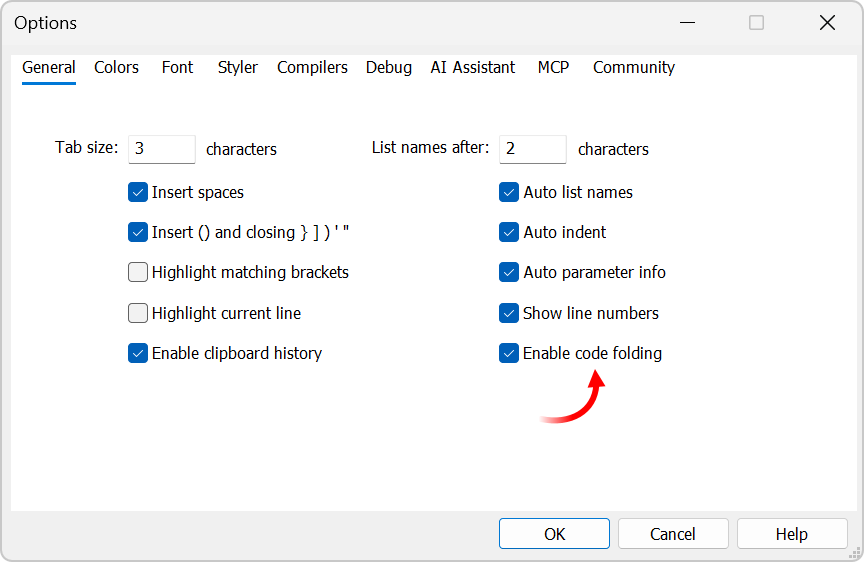
Use the new option in the settings to enable or disable this feature:
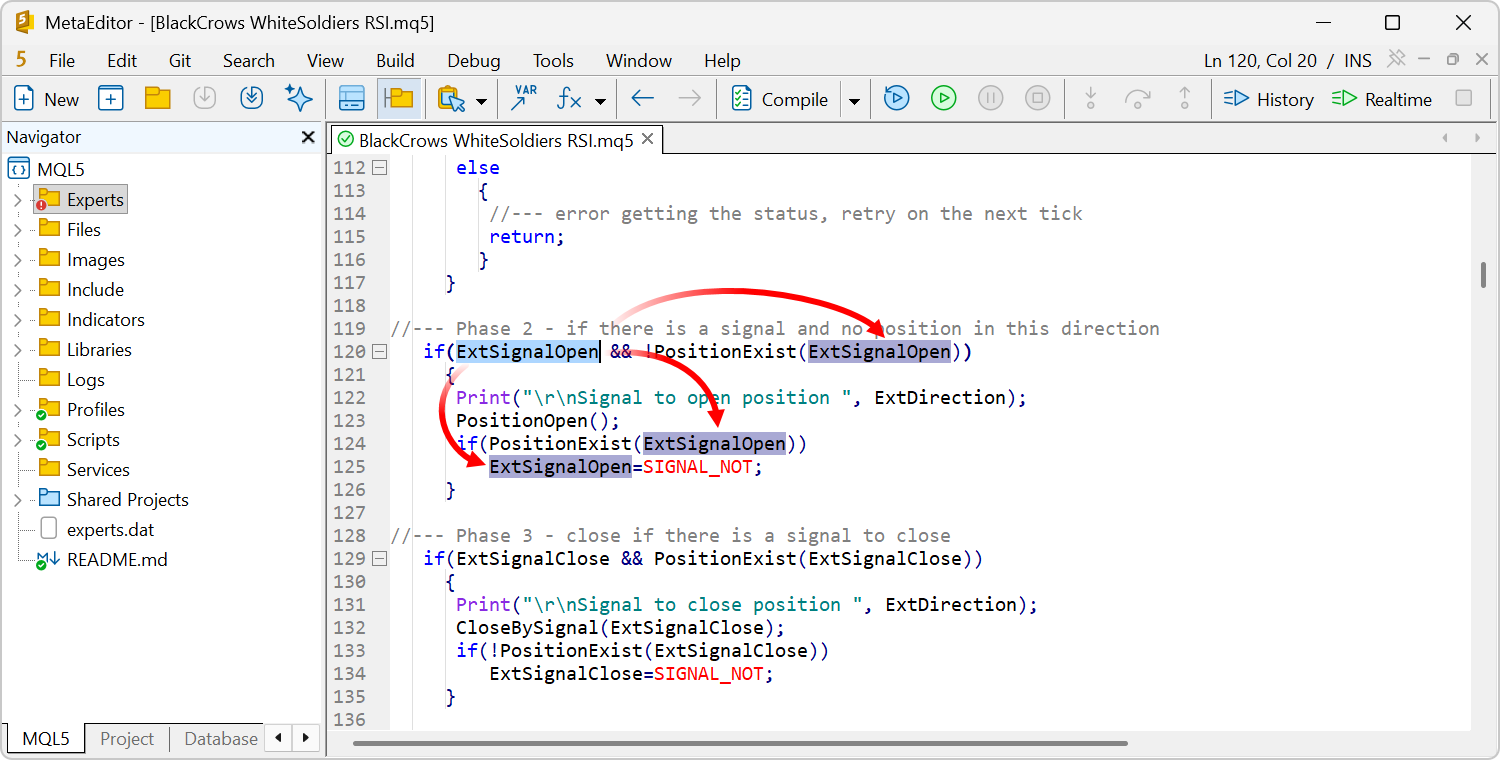
- Added highlighting of all occurrences when selecting a word. When you
select an identifier, variable, function, or any other word, MetaEditor
automatically highlights all occurrences of that word in the current
file. This makes it easier to quickly locate related code sections,
track variable and function usage, and significantly simplifies analysis
and navigation through large source files.
- Fixed display issues with *.md files.
- Added UTF-8 support for *.mqproj projects. This encoding is now used when saving such files.
- Changed the encoding used for saving *.mq5 and *.mqh files. They are now saved as UTF-8 without BOM.
- Fixed source code highlighting. Some MQL5 language identifiers could previously be displayed with incorrect colors.
- Fixed saving and loading of coordinates for detached windows.
- Fixed keyboard shortcut handling in detached windows.
Tester
- Fixed the application of custom spreads in the "Open prices only" testing mode.
- Fixed percentage-based swap calculations.
- Fixed the display of testing parameters that cannot participate in optimization (for example, string parameters). Such parameters are now displayed with an empty gray square, indicating that the parameter is disabled and cannot be selected.
- Fixed the display of the clrNONE color value in MQL5 program parameters during testing.
- Fixed the application of custom margin settings.
Web Terminal
- Improved operation on touchscreen devices.
Earlier publications:
- MetaTrader 5 Platform Update Build 5830: General Improvements
- MetaTrader 5 Platform Update Build 5800: Redesigned Trading Dialog and Improved Operations with CSV in MetaEditor
- MetaTrader 5 Platform Update Build 5660: Improvements and Fixes
- New MetaTrader 5 Platform Version Build 5640: Dark Theme Improvements and Markdown Support in MetaEditor
- New MetaTrader 5 Build 5572: ONNX and Chart Rendering Improvements