
- Instalación de la plataforma
- Instalación en Mac OS
- Instalación en Linux
- Inicio de la plataforma
- Autorización ampliada
- Contraseñas de un solo uso - 2FA/TOTP
- Passkey
- Estructura de carpetas y archivos
- Administrar cuentas comerciales
- Correo
- Sistema de seguridad
- Actualización automática
- Registro de la plataforma
- Administrador de tareas
- Atajos de teclado
- Desinstalación de plataforma
Authentication Using a Passkey
Passkeys protect accounts against phishing, credential theft, and various attacks by authenticating users with cryptographic keys that work only with the legitimate website or service. Unlike passwords, passkeys do not rely on a shared secret that attackers can intercept, steal, or trick you into revealing.
The trading platform supports passkeys as a highly secure second authentication factor. In this case, a passkey does not replace your account login and password; it simply adds an extra verification step.
After you add a passkey, the sign-in process works as follows: enter your login and password, then authenticate using the device (smartphone or USB key) where your passkey is stored. This approach may be more convenient and secure than entering a code from an authenticator app.
Adding a Passkey #
If your broker supports passkeys, you can add it for your trading account in two ways:
- During sign-in: After entering your account login and password, you may be prompted to add a passkey. For new accounts, after clicking "Finish" in the "Open an account" window, you may be asked to add a passkey.
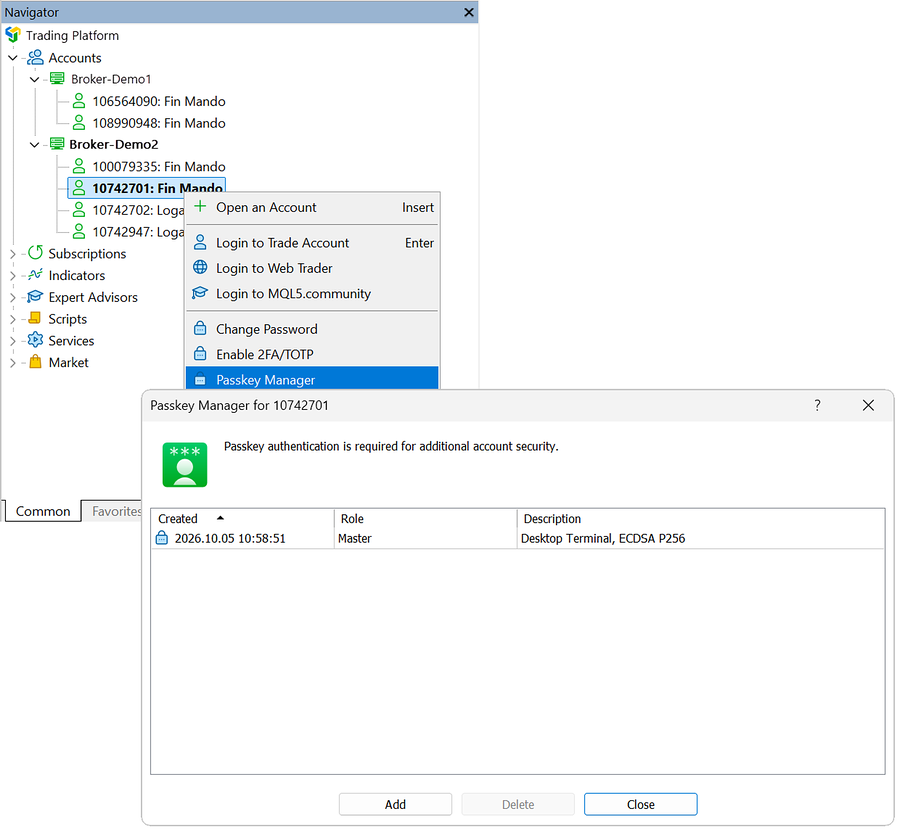
- Passkey Manager: You can add a new passkey for the currently signed-in trading account in Passkey Manager. Right-click your trading account, then select "Passkey Manager". In the "Passkey Manager" window, click the "Add" button.
Storing a passkey #
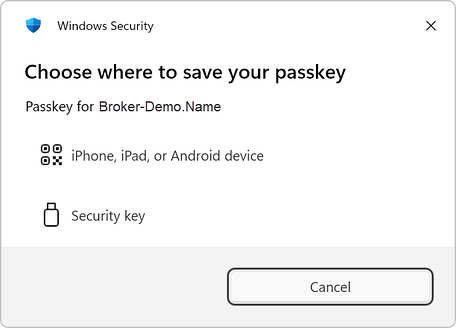
When adding a passkey for your trading account, you will be prompted to store the passkey on a mobile device (iPhone, iPad, or Android) or USB security key:
Mobile device
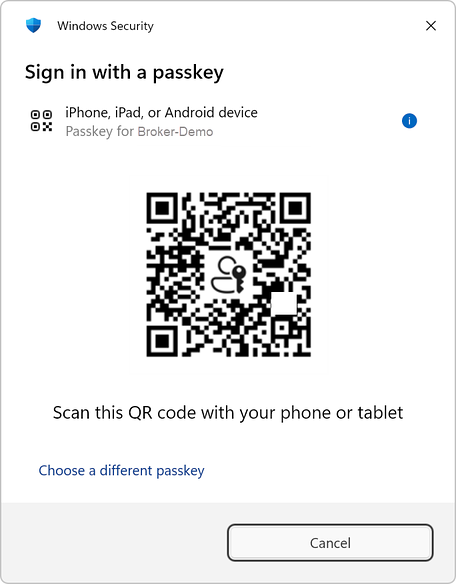
Choose "iPhone, iPad, or Android device", then use your phone's camera to scan the QR code. Next, select your preferred password manager on your mobile device for saving the passkey. iOS's native Password Manager and Chrome's/Google's Password Manager are good options for storing passkeys.
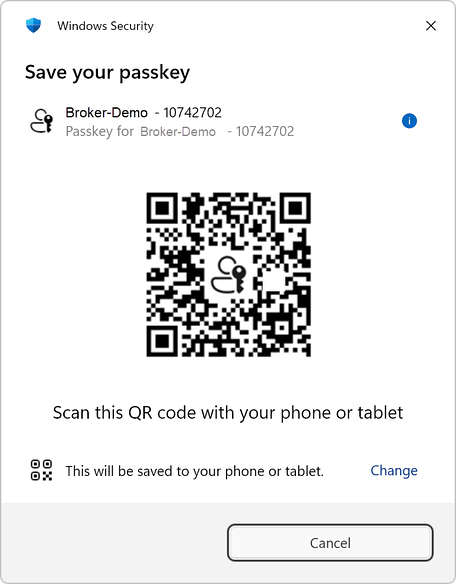
Both your mobile device and computer must have Bluetooth turned on whenever a passkey is being stored or used.. Bluetooth is used as a proximity check to prove that your mobile device and computer are close to one another. This guards against remote attacks.
USB security key
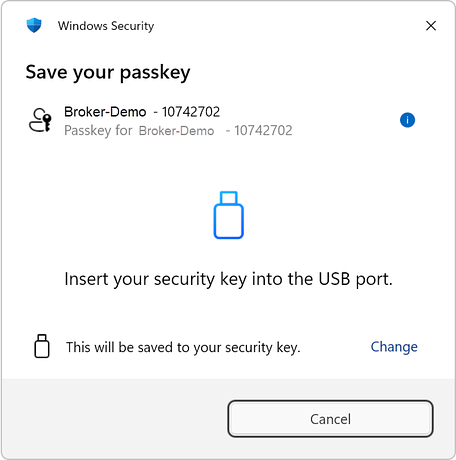
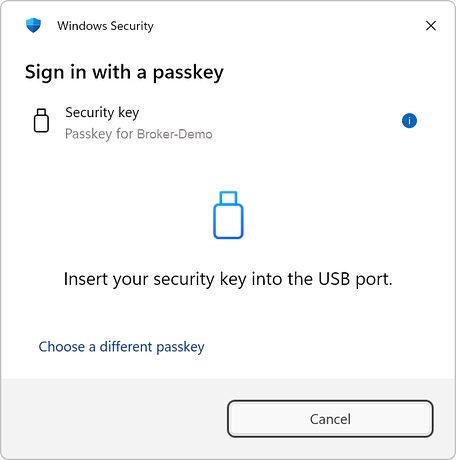
Plug a compatible FIDO2 security key into your computer's USB port, then choose "Security key". Next, follow the on-screen prompts. You may be asked to create a PIN, press a button/sensor on the physical USB device, or both.
Authenticating With a Passkey #
After adding and storing a passkey, you will be prompted to authenticate using the passkey every time you sign in to your trading account. First, choose the storage location for the passkey and continue as follows:
Mobile device
Scan the QR code using the camera of your iPhone, iPad, or Android device. You will then be automatically directed to the password manager containing your passkey and prompted to authenticate using your biometrics (facial recognition, fingerprint, etc) or PIN.
USB security key
Plug the FIDO2 security key into your computer's USB port. Follow the on-screen prompts to authenticate. You may need to enter a PIN or press a button/sensor on the device.
Removing a Passkey #
You can remove existing passkeys for your trading account in Passkey Manager. Right-click your trading account, then select "Passkey Manager". On the "Passkey Manager" window, select the passkey you want to delete, then click the "Delete" button.
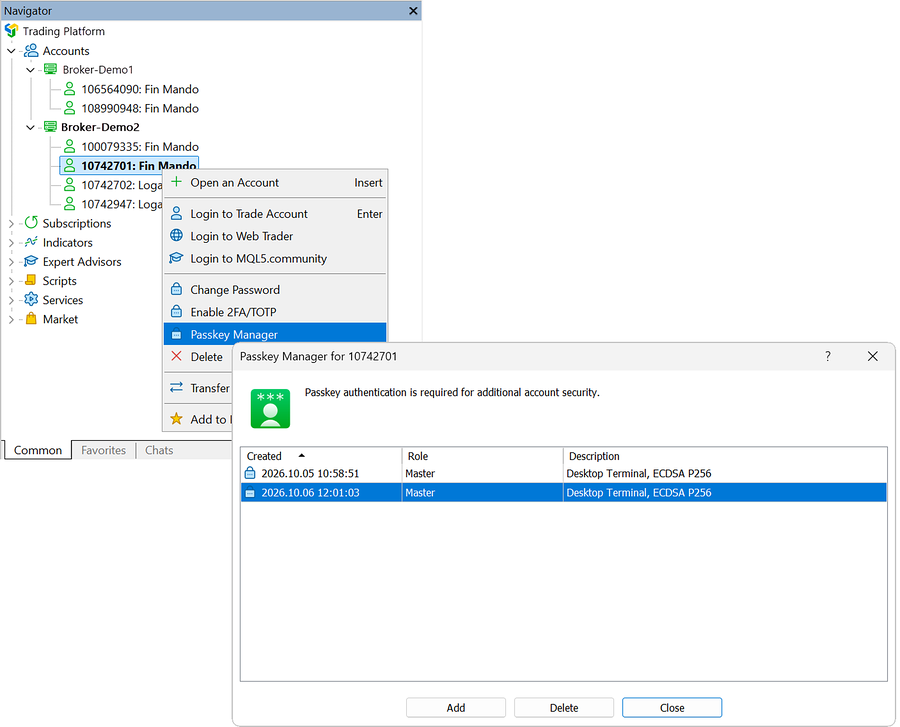
Confirm the operation and the passkey will be deleted.