
- Configuration
- Capabilities
- Examples
Configuring Settings for AI
AI settings cover the built-in AI Assistant, the MCP server, and applicable third-party agents or apps. If you use only the AI Assistant, you can focus squarely on its settings or stick with the default values.
Your AI Assistant and MCP server settings are automatically synchronized between the trading terminal and MetaEditor since both apps use the same settings. The only exception is the MCP server address, which must be unique for each app.
AI Assistant #
Click Tools \ Options in the top menu, then navigate to the AI Assistant tab.
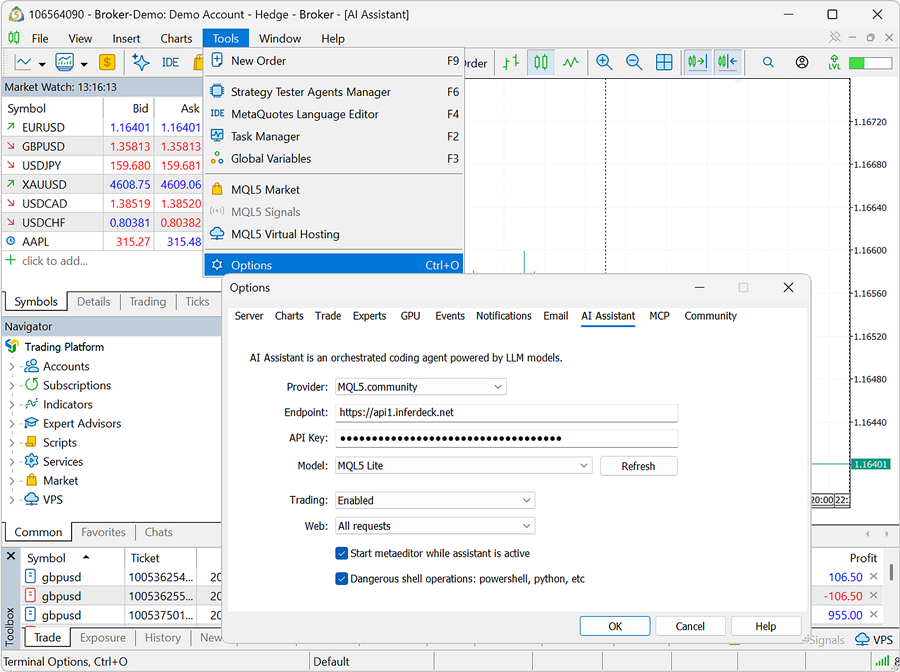
MetaTrader 5 automatically configures the settings for the AI Assistant to use the free MQL5 Lite model by default. If you want the AI Assistant to use a different model, then you must set a new provider, endpoint, API key, and model:
- Provider – select your preferred AI provider. MQL5.community is selected by default. Available options include Anthropic, OpenAI, Gemini, DeepSeek, xAI, etc.
- Endpoint – enter the base URL for your selected AI providers API endpoint. The endpoint is often inferred automatically from the chosen provider. Manual editing may be required if you want to use custom proxies, local deployments, or enterprise API gateways.
- API Key – input your authentication key for the selected AI provider to grant access to your account and model quotas.
- Model – choose a model offered by the selected provider. Clicking the Refresh button reveals available models.
Irrespective of the provider selected for the AI Assistant, you can control or restrict its trading, web, and shell capabilities via the following options:
- Trading – choose whether you want the AI agent to be able to execute trades, request explicit confirmation, or not trade at all.
- Web – choose whether you want the AI agent to be able to use full web functionality, GET requests only, or stay locked out from the web.
- Start MetaEditor while Assistant is active – enable this option if you want MetaEditor to be running whenever the AI Assistant is in use. This enables the AI Assistant to use MetaEditor's tools to perform coding, compilation, or debugging tasks.
- Dangerous shell operations: PowerShell, Python, etc. – enable this option if you want the AI Assistant to be able to execute shell commands on your computer and operate outside the sandbox of the MQL5, Tester, Logs, and Common directories. This empowers the AI Assistant to use any available tools, packages, or services, such as PowerShell or Python, to perform tasks.
Click OK to save changes.
MCP Server #
Click Tools \ Options in the top menu, then navigate to the MCP tab.
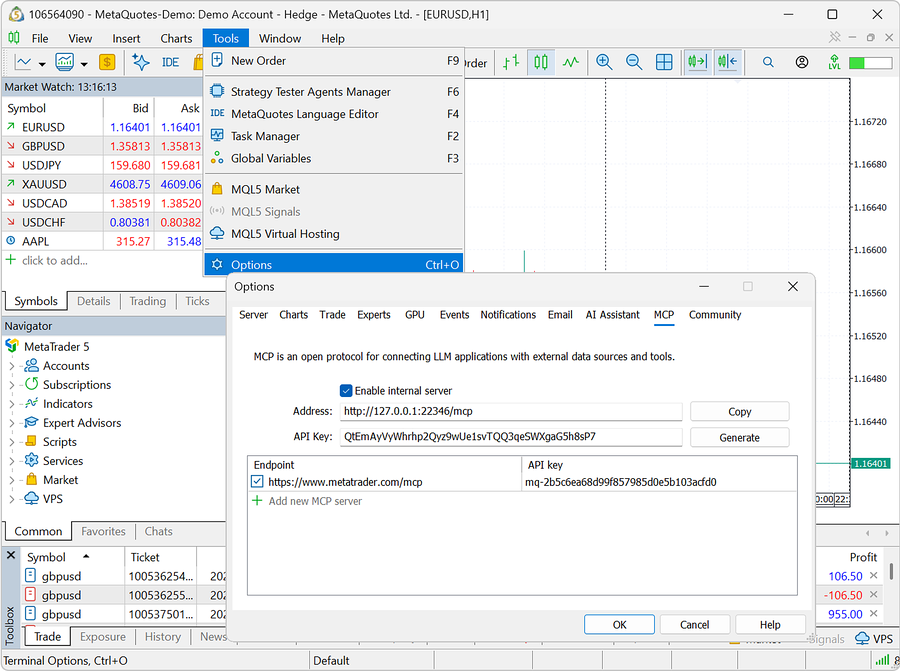
The correct MCP settings are automatically configured by default. If you plan to connect the platform to an external AI agent or app, you need the details provided here.
Adjust MCP Settings #
To use an external AI agent or app, adjust these MCP settings:
- Enable internal server – enable this option to turn on the built-in terminal MCP server, allowing external AI clients and agents to connect directly to your platform. This option does not control the marketdata or metaeditor MCP server.
- Address – specify the host IP address and port number (e.g., http://127.0.0.1:22346/mcp) on which the MetaTrader MCP server listens for incoming client connections. This address should not be used by any other application.
- API Key – generate a secure token required by external AI apps or clients, such as Claude Code or Codex, to authenticate and access the platform's data and functionality.
In the Endpoint section, you can enable or disable an existing MCP endpoint and add new ones.
Click OK to save changes.
Get MCP Details #
After adjusting your MCP settings and saving them, click the Copy button to get the configuration details for your external AI app.
Clicking the Copy button adds these details to your clipboard:
## Claude Code as .mcp.json file in project folder
{
"mcpServers": {
"metaeditor": {
"type": "http",
"url": "http://127.0.0.1:22345/mcp",
"headers": {
"Authorization": "Bearer <token>"
}
},
"terminal": {
"type": "http",
"url": "http://127.0.0.1:22346/mcp",
"headers": {
"Authorization": "Bearer <token>"
}
},
"marketdata": {
"type": "http",
"url": "https://www.metatrader.com/mcp",
"headers": {
"Authorization": "Bearer <token>"
}
}
}
}
## ChatGPT Codex as .codex\config.toml in project folder
[mcp_servers.metaeditor]
url = "http://127.0.0.1:22345/mcp"
enabled = true
http_headers = { "Authorization" = "Bearer <token>" }
[mcp_servers.terminal]
url = "http://127.0.0.1:22346/mcp"
enabled = true
http_headers = { "Authorization" = "Bearer <token>" }
[mcp_servers.marketdata]
url = "https://www.metatrader.com/mcp"
enabled = true
http_headers = { "Authorization" = "Bearer <token>" }
It contains two section of settings, one for Claude Code and the other one for Codex. Both of them include three MCP server settings:
- terminal MCP server – provides the platform's tools for placing and managing orders, getting account data, controlling UI elements, and more.
- marketdata MCP server – provides MetaTrader.com's market data, news, economic calendars, events, and related information.
- metaeditor MCP server – provides MetaEditor's tools for algorithm development and complex file operations.
Configure Third-Party Agents and Apps #
The guides below focus on Claude Code and Codex, but the platform's MCP servers are not limited to them. You can connect the servers to any MCP-compatible AI agent or application via a JSON configuration, similar to the one used by Claude Code.
If you work with Codex, copy the corresponding part of the above code to the the file named config.toml, and place the file to the .codex subfolder of your project.
[mcp_servers.metaeditor]
url = "http://127.0.0.1:22345/mcp"
enabled = true
http_headers = { "Authorization" = "Bearer <token>" }
[mcp_servers.terminal]
url = "http://127.0.0.1:22346/mcp"
enabled = true
http_headers = { "Authorization" = "Bearer <token>" }
[mcp_servers.marketdata]
url = "https://www.metatrader.com/mcp"
enabled = true
http_headers = { "Authorization" = "Bearer <token>" }
For example, open your local Codex app, click File \ Open Folder. Then create a folder that will become your project root, for example, D:\My Project. After that place the settings file as D:\My Project\.codex\config.toml.
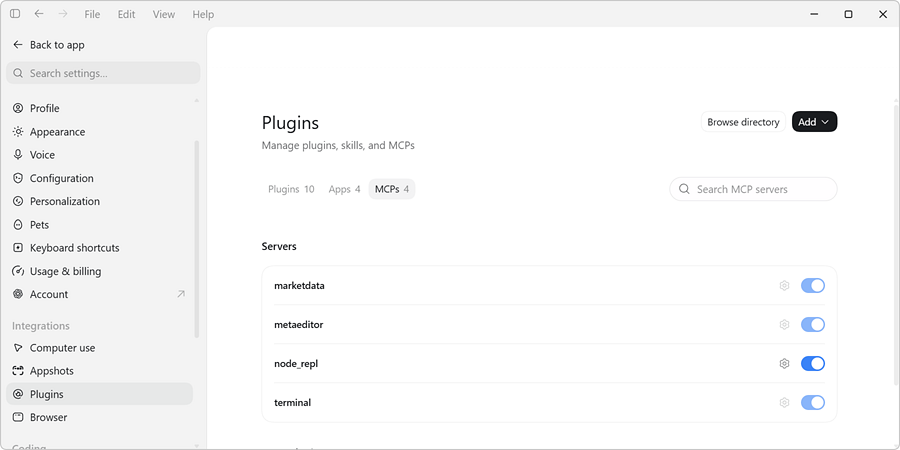
Restart Codex and check if the platform's MCP servers have become available. For that, go to File \ Settings \ Plugins \ MCPs. You should see the servers on the list.
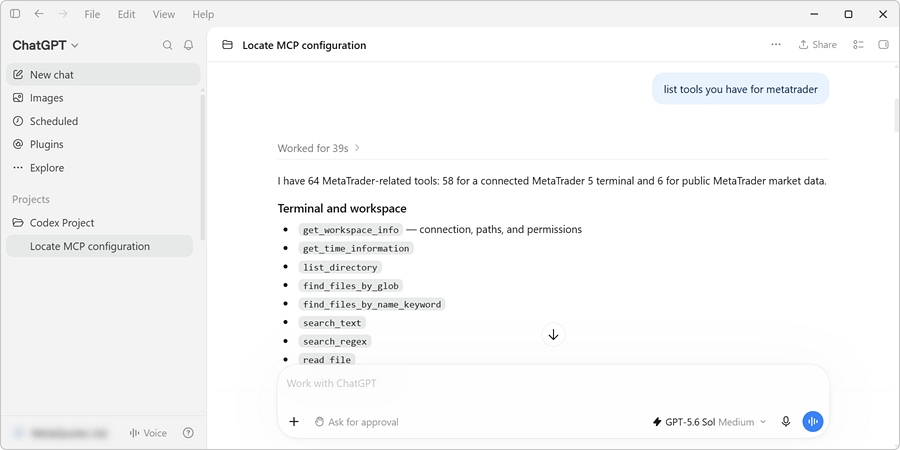
You can also ask Codex for tools available for your platform, to make sure are ready for work:
If you work with Claude Code, copy the corresponding part of the above code to the the file named .mcp.json, and place the file to your project folder. For system-wide access, code the code to ~/.claude.json file.
{
"mcpServers": {
"metaeditor": {
"type": "http",
"url": "http://127.0.0.1:22345/mcp",
"headers": {
"Authorization": "Bearer <token>"
}
},
"terminal": {
"type": "http",
"url": "http://127.0.0.1:22346/mcp",
"headers": {
"Authorization": "Bearer <token>"
}
},
"marketdata": {
"type": "http",
"url": "https://www.metatrader.com/mcp",
"headers": {
"Authorization": "Bearer <token>"
}
}
}
}
Restart your Claude Code app for the settings to take effect.