
MCP Servers and AI Assistant
The trading platform integrates artificial intelligence directly into the trading environment, allowing AI agents to work with real data and functionality rather than operate as standalone chatbots. Through the Model Context Protocol (MCP), AI can access relevant market and account data, analyze charts and trading history, work with Expert Advisors, use the Strategy Tester, and perform supported operations in response to natural-language instructions.
This integration is especially useful for complex, multi-step tasks. Instead of manually collecting data, switching between tools, and performing each operation separately, you can describe the desired result and let the AI Assistant coordinate the necessary steps. For example, it can analyze market conditions and open positions, review trading performance, prepare charts, test and optimize Expert Advisors, examine logs and test reports, or help investigate issues in MQL5 programs.
The built-in AI Assistant provides immediate access to these capabilities. MCP also offers an open interface for connecting compatible third-party AI applications and agents, allowing you to choose the tools and models that best suit your workflow.
You remain in control of what AI can access and which operations it is allowed to perform. AI-generated results should always be reviewed and verified before use.
About MCP
The Model Context Protocol is an open standard that acts as a universal bridge between AI agents and apps. It enables you to connect your trading platform to any MCP-supported environment or agent, such as Claude Code or Codex.
Through MCP, an AI discovers the platform's capabilities, gets data, analyzes markets, executes and manages trades, and performs any supported task. Unlike traditional chatbots that can only generate texts in a question-answer format, MCP-enabled agents typically execute multi-step workflows and interact directly with applications.
Using the Built-in AI Assistant #
The built-in AI Assistant is powered by a free MQL5 lite model by default. To use the AI Assistant, make sure you are signed in to your MQL5.community account. Then click the AI icon in the top menu to start a new session.

After that, type in what you want and send it.
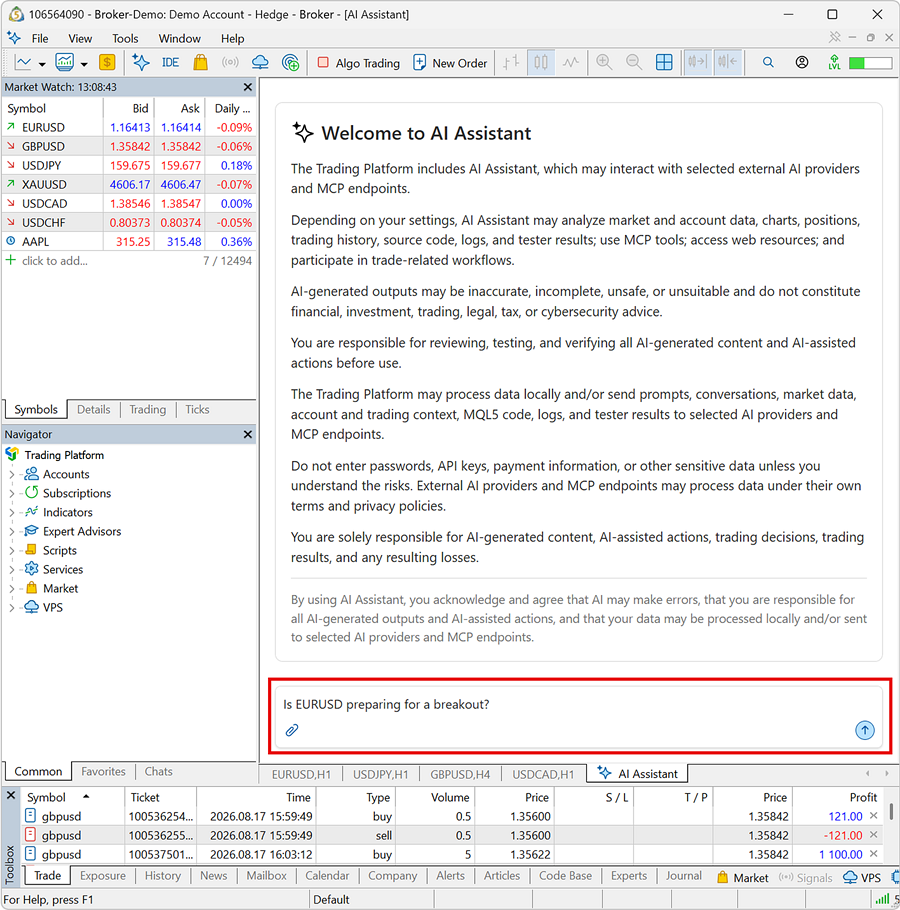
You can configure the AI Assistant as you like and restrict it from trading, using the web, and running shell commands. This allows for safe, secure AI use while keeping sensitive capabilities under your control.
Optionally, you can set up the AI assistant to use an AI model from a leading provider, including OpenAI, Anthropic, Google, and others. This gives you the flexibility to choose the best model for your needs and budget.
MetaEditor also features MCP servers and a built-in AI Assistant, supporting algorithm development and complex file operations via simple natural language commands.
Prompt Examples
The prompts in the table illustrate common AI use cases in trading and analysis. However, you may benefit from learning about each tool provided by the platform's MCP servers and studying practical examples.
Adapt the symbols, periods, position sizes, risk limits, and any criteria to your approach or preferences. Carefully study every prompt before using it and review any proposed action before executing it.
You are solely responsible for AI-generated content, AI-assisted actions, trading decisions, trading results, and any resulting losses.
Category |
Prompt |
|---|---|
Analysis |
Fetch H1 candle data for GBPUSD for the last 7 days and analyze the current trend and momentum. |
Trading |
Open a 0.5-lot EURUSD market order with the stop loss and take profit set to the H4 volatility distance. |
Account/portfolio management |
Pull my 30-day trading history, calculate the expectancy per trade and correlation risk, and provide insights. |
Charts |
Open EURUSD and GBPUSD charts on M5, H1, and H4. |
Watchlists |
Add EURUSD, USDJPY, XAUUSD, and all symbols with active charts to my Market Watch. |
Strategy testing |
Backtest the Quantum Excellence EA on H1 real ticks for the last 5 years. |
MQL5 development |
Create an indicator that applies the full chart color profile of MetaTrader Web light mode to charts. |