---
title: "MCP and AI - Справка по MetaEditor"
description: "MetaEditor integrates artificial intelligence directly into the development environment, allowing AI agents to work closely... - MCP and AI - Справка по MetaEditor"
image: "https://www.metatrader5.com/i/logo_metatrader5.png"
url: "https://www.metatrader5.com/ru/metaeditor/help/mcp_and_ai"
---
[Справка по MetaEditor](https://www.metatrader5.com/ru/metaeditor/help) → MCP and AI
# MCP Servers and AI Assistant in MetaEditor
MetaEditor integrates artificial intelligence directly into the development environment, allowing AI agents to work closely with source code, various tools, and market data rather than operate as simple chatbots. Through the Model Context Protocol (MCP), AI can access relevant project files, analyze and modify code, compile programs, backtest and optimize algorithms, and perform supported development operations in response to natural-language instructions.
This integration is especially useful for complex, multi-step development tasks. Instead of manually navigating files, typing code, and switching between tools, you simply describe your desired goal and the AI Assistant will perform the necessary tasks to achieve it. For example, it will create Expert Advisors, indicators, and scripts, analyze or modify existing source code, run tests/optimizations and review the results, and automatically diagnose or resolve problems.
The [built-in AI Assistant](https://www.metatrader5.com/ru/metaeditor/help/mcp_and_ai#using_ai_assistant) provides immediate access to these capabilities in MetaEditor. MCP also offers an open interface for connecting compatible third-party AI applications and agents, allowing you to choose your preferred tools and models, such as [ChatGPT or Claude](https://www.metatrader5.com/ru/metaeditor/help/mcp_and_ai/configuration#third_party_ai_agents_apps).
You remain in control of what AI can access and which operations it is allowed to perform. You are strongly advised to review and test AI-generated outputs in demo environments before adapting them for live use.
## About MCP
The [Model Context Protocol](https://modelcontextprotocol.io/) is an open standard that acts as a universal bridge between AI agents and apps. It enables you to connect MetaEditor to any MCP-supported environment or agent, such as [Claude Code](https://www.metatrader5.com/ru/metaeditor/help/mcp_and_ai/configuration#claude_code_mcp_config) or [Codex](https://www.metatrader5.com/ru/metaeditor/help/mcp_and_ai/configuration#codex_mcp_config).
Through MCP, an AI can discover MetaEditor capabilities, inspect and modify source files, navigate projects, compile programs, and even coordinate testing. MCP tools are also available for the [trading terminal](https://www.metatrader5.com/en/terminal/help/mcp_and_ai) and market data, empowering AI to combine development processes with standard trading/analysis operations.
## Using the Built-in AI Assistant [#](#using_ai_assistant)
The built-in AI Assistant is powered by a free MQL5 lite model by default. To use the AI Assistant, ensure you are [signed in](https://www.metatrader5.com/ru/metaeditor/help/beginning/settings#mql5community) to your MQL5.community account. Then click the AI icon in the top menu to start a new session.

Next, type in what you want and send it.
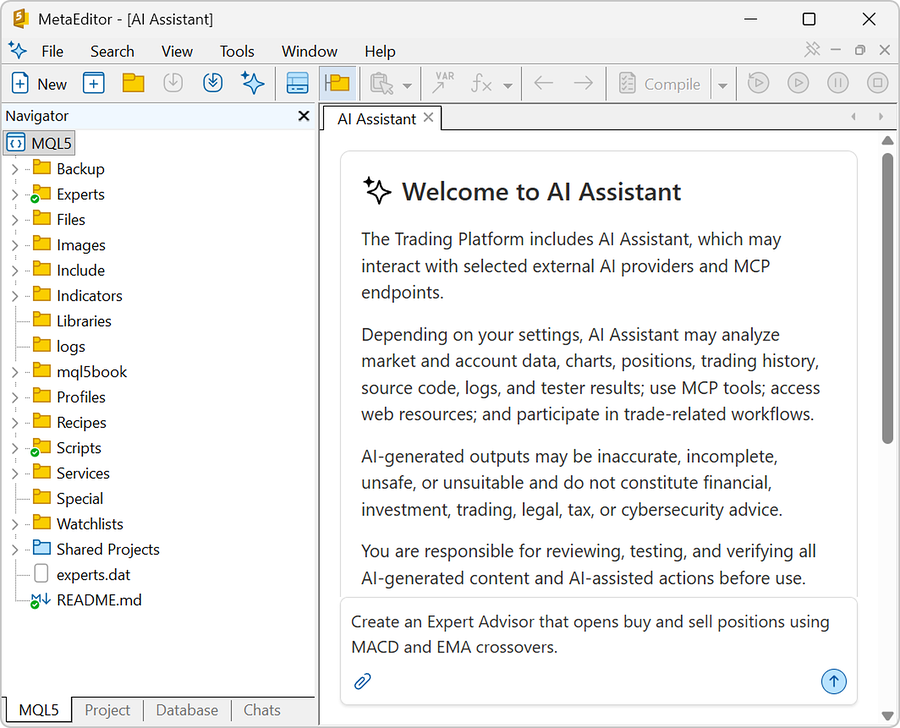
The AI Assistant can see which files are open in the editor. It may use this context to better understand your task.
You can [configure the AI Assistant](https://www.metatrader5.com/ru/metaeditor/help/mcp_and_ai/configuration#ai_assistant_settings) as you like and restrict it from trading, using the web, and running shell commands. This allows for safe, secure AI use while keeping sensitive capabilities under your control.
Optionally, you can set up the AI Assistant to [use an AI model](https://www.metatrader5.com/ru/metaeditor/help/mcp_and_ai/configuration#ai_assistant_settings) from a leading provider, including OpenAI, Anthropic, Google, and others. This gives you the flexibility to choose the best model for your needs and budget.
> The [trading terminal](https://www.metatrader5.com/en/terminal/help/mcp_and_ai) also features MCP servers and a built-in AI Assistant, supporting trading, charting, market analysis, strategy testing, and various workflows via simple natural language commands.
## Prompt Examples
The prompts in the table illustrate common AI use cases in algorithm development. You may benefit from learning about [each tool](https://www.metatrader5.com/ru/metaeditor/help/mcp_and_ai/capabilities) provided by MCP servers and studying [practical examples](https://www.metatrader5.com/ru/metaeditor/help/mcp_and_ai/practical_examples).
> Adapt file names, symbols, periods, risk limits, and requirements to your project. Carefully study every prompt and review all generated code and proposed actions before using them.
>
> You are solely responsible for AI-generated content, AI-assisted actions, trading decisions, trading results, and any resulting losses.
| Category | Prompt |
| --- | --- |
| Creating EAs, indicators, scripts | Create an Expert Advisor that opens buy and sell positions using MACD and EMA crossovers.
Create an indicator that applies the full chart color profile of MetaTrader Web light mode to charts. |
| Researching trading algorithms | Use the last 3,000 USDJPY ticks to check whether entropy of direction, inter-arrival time, and volume can predict the next 100-tick move magnitude. Compare with 20 block-shuffled controls and one completed M5 direction signal. |
| Refactoring and converting algorithms | Provide the MQL5 version of this MQL4 EA. Replicate the same exact logic and explain any case where you had to apply the closest equivalent. Fix all errors so that the MQL5 version works perfectly in MetaTrader 5. |
| Building multi-timeframe strategies | Create a USDCAD compression EA from 120 D1, H4, and H1 bars plus 500 M5 bars. Require higher-timeframe ranges below their 20th percentiles and a closed M5 expansion with tick-volume confirmation. |
| Generating boilerplate and frameworks | Create a reusable MQL5 framework that reads the H4 trend and executes on M5. Include CopyRates and CopyBuffer checks, new-bar detection, history validation, indicator-handle cleanup, and clear extension points for entry logic. |
| Debugging and auditing algorithms | For the last 50 decisions, add temporary Print checkpoints where price, indicator, or external values are acquired and where the decision is made. Run the range once and read the journal chronologically.
Audit the GoldTrend EA for bad logic and problems such as uninitialized values, incorrect price conversions, invalid handles, unsuitable filling modes, and blocking calls inside OnTick. |
| Optimizing performance and speed | Suggest adjustments for this USDCHF MeanReversion EA to enable it better target recent EURUSD conditions, H1 volatility, and trend.
Check this Expert Advisor for issues such as repeated indicator creation, unnecessary buffer copies, heavy string operations, and avoidable memory allocations. Also, find any calculation that runs on every tick even though it can be made to run reliably once per bar. |
| Using self-improvement loops | Backtest the EA on XAUUSD H1 for the last 12 months using reasonable settings. Analyze the results, adjust the code accordingly, then backtest again and continue the cycle. Stop the process if the EA doesn't show improved results by the third cycle. |
## Other Actions
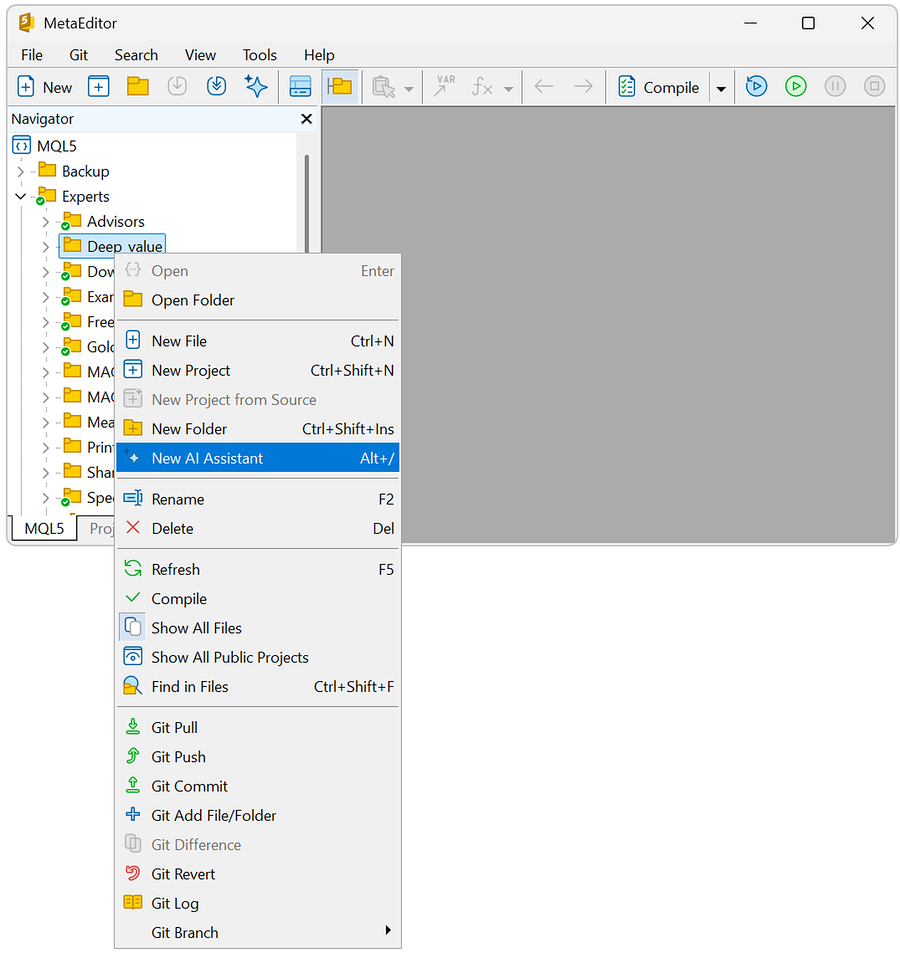
You can point the AI assistant to a folder/file in Navigator: right-click the folder/file from the MQL5 tab, then select New AI Assistant. This will make the selected folder an additional context for the AI Assistant, so that it knows what you're currently working on. It does not put any additional permissions or constraints on the Assistant's operation.
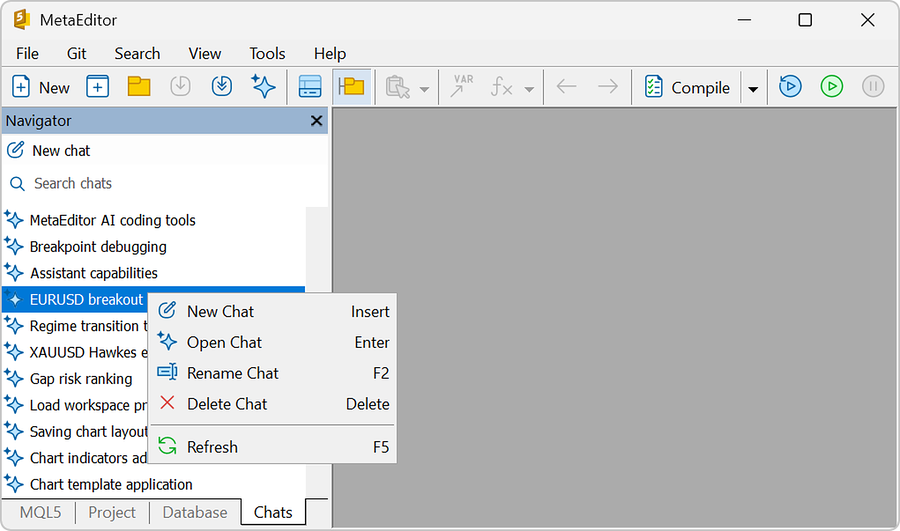
The Chats tab in Navigator displays past chat sessions, a New chat button for starting a new session, and a text field for searching through session names. Right-clicking a chat reveals a context menu:
- New chat — start a fresh chat session.
- Open chat — open the chosen chat.
- Rename — enter a new name that replaces the current identifier for the chat session.
- Delete — delete the chosen chat.
- Refresh — reload the historical chat list.
## In this section
- [Configuration](https://www.metatrader5.com/ru/metaeditor/help/mcp_and_ai/configuration)
- [Capabilities](https://www.metatrader5.com/ru/metaeditor/help/mcp_and_ai/capabilities)
- [Examples](https://www.metatrader5.com/ru/metaeditor/help/mcp_and_ai/practical_examples)
```json
{"@context": "https://schema.org", "@type": "BreadcrumbList", "itemListElement": [ {"@type": "ListItem", "position": 1, "item": {"@id": "https://www.metatrader5.com/ru/metaeditor/help", "name": "Справка по MetaEditor"}}, {"@type": "ListItem", "position": 2, "item": {"@id": "https://www.metatrader5.com/ru/metaeditor/help/mcp_and_ai", "name": "MCP and AI"}} ]}
{ "@context": "https://schema.org", "@type": "FAQPage", "mainEntity": [{ "@type": "Question", "name": "MetaTrader 5: MCP and AI", "acceptedAnswer": { "@type": "Answer", "text": "MetaEditor integrates artificial intelligence directly into the development environment, allowing AI agents to work closely with source code..." } }] }
```