---
title: "Placing Pending Orders - Trade - MetaTrader 5 for Android - MetaTrader 5 Android Help"
description: "To place a pending order, do one of the following actions: In the \"Quotes\" window, select the required symbol and execute the... - Placing Pending Orders - Trade - MetaTrader 5 Android Help"
image: "https://www.metatrader5.com/i/logo_metatrader5.png"
url: "https://www.metatrader5.com/en/mobile-trading/android/help/trade/pending_place"
---
[MetaTrader 5 Android Help](https://www.metatrader5.com/en/mobile-trading/android/help) → [Trade](https://www.metatrader5.com/en/mobile-trading/android/help/trade) → Placing Pending Orders
| # Placing of Pending Orders
To place a pending order, do one of the following actions:
- In the ["Quotes"](https://www.metatrader5.com/en/mobile-trading/android/help/quotes) window, select the required symbol and execute the "New order" command of the context menu.
- Tap on  on the ["Trading"](https://www.metatrader5.com/en/mobile-trading/android/help/trade) tab.
- If there are open positions or orders, use the commands of the context menu commands of the ["Trade"](https://www.metatrader5.com/en/mobile-trading/android/help/trade#context) tab.
The following parameters are specified at this stage:
- Volume – volume of an order in lots. To change the volume, use side buttons or click on the field to enter the value manually.
- Symbol – the symbol for which you place a pending order. | 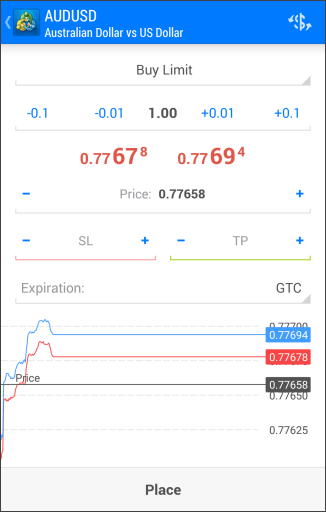 |
| --- | --- |
| - Trade operation type – select the [type of a pending order](https://www.metatrader5.com/en/mobile-trading/android/help/trade/general_concept/order_types#pending_order). In this field you can also switch to placing a [market order](https://www.metatrader5.com/en/mobile-trading/android/help/trade/open_positions).
- Price – price at which the pending order should trigger. For stop and limit orders this is the price, at which they will be placed. For Stop Limit orders, this is the price of triggering and setting of limit orders at the level specified in "Stop Limit Price".
- Stop Limit Price – this field is active only for Stop Limit orders. When the Stop Limit order triggers, a limit order will be placed at the price specified in it.
- SL – the level of [Stop Loss](https://www.metatrader5.com/en/mobile-trading/android/help/trade/general_concept/order_types#stop_loss). If you leave this field empty, this type of order will not be set.
- TP – Level [Take Profit](https://www.metatrader5.com/en/mobile-trading/android/help/trade/general_concept/order_types#take_profit). If you leave this field empty, this type of order will not be set.
- Fill Policy – additional [rules of filling](https://www.metatrader5.com/en/mobile-trading/android/help/trade/general_concept/fill_policy) for [limit and stop-limit orders](https://www.metatrader5.com/en/mobile-trading/android/help/trade/general_concept/order_types): "Fill or Kill", "Immediate or Cancel", "Book or Cancel" or "Return". If this box is unavailable, then the option is locked on the server;
- Expiration – conditions of the order expiration:
- Good Till Canceled (GTC)– the order will stay in the queue until it is manually canceled.
- Today– the order will be valid only during the current trading day.
- Date and Time– the order will be valid until the specified date. When selecting this option, you will automatically switch to the date and time specification. To return to choosing the expiration type, remove the expiration date.
- Date – the order will be valid until 00:00 of the specified day. If this time is not within a trading session, expiration will occur in the nearest trading time.
\| - The "Place" button is inactive if any of the parameters is incorrect.
- Stop Loss and Take Profit orders only trigger for open positions, not for pending orders.
- If the field "Execution" and "Expiration" fields are inactive, it means the possibility to change them is locked on the server. \|
\| --- \| | |
| - The "Place" button is inactive if any of the parameters is incorrect.
- Stop Loss and Take Profit orders only trigger for open positions, not for pending orders.
- If the field "Execution" and "Expiration" fields are inactive, it means the possibility to change them is locked on the server. | |
## In this section
- [Trading Principles](https://www.metatrader5.com/en/mobile-trading/android/help/trade/general_concept)
- [Opening and Closing Positions](https://www.metatrader5.com/en/mobile-trading/android/help/trade/open_positions)
- [Close By](https://www.metatrader5.com/en/mobile-trading/android/help/trade/closeby)
- [Modifying a Position](https://www.metatrader5.com/en/mobile-trading/android/help/trade/change_positions)
- Placing Pending Orders
- [Managing Pending Orders](https://www.metatrader5.com/en/mobile-trading/android/help/trade/pending_change)
- [Bulk Operations](https://www.metatrader5.com/en/mobile-trading/android/help/trade/bulk_operations)
```json
{"@context": "https://schema.org", "@type": "BreadcrumbList", "itemListElement": [ {"@type": "ListItem", "position": 1, "item": {"@id": "https://www.metatrader5.com/en/mobile-trading/android/help", "name": "MetaTrader 5 Android Help"}}, {"@type": "ListItem", "position": 2, "item": {"@id": "https://www.metatrader5.com/en/mobile-trading/android/help/trade", "name": "Trade"}}, {"@type": "ListItem", "position": 3, "item": {"@id": "https://www.metatrader5.com/en/mobile-trading/android/help/trade/pending_place", "name": "Placing Pending Orders"}} ]}
{ "@context": "https://schema.org", "@type": "FAQPage", "mainEntity": [{ "@type": "Question", "name": "MetaTrader 5: Placing Pending Orders", "acceptedAnswer": { "@type": "Answer", "text": "To place a pending order, do one of the following actions: In the "Quotes" window, select the required symbol and execute the "New..." } }] }
```