---
title: "Opening and Closing Positions - Trade - MetaTrader 5 for Android - MetaTrader 5 Android Help"
description: "Opening a position (entering the market) is the initial purchase or sale of a specified volume of a financial instrument. To... - Opening and Closing Positions - Trade - MetaTrader 5 Android Help"
image: "https://www.metatrader5.com/i/logo_metatrader5.png"
url: "https://www.metatrader5.com/en/mobile-trading/android/help/trade/open_positions"
---
[MetaTrader 5 Android Help](https://www.metatrader5.com/en/mobile-trading/android/help) → [Trade](https://www.metatrader5.com/en/mobile-trading/android/help/trade) → Opening and Closing Positions
| # Opening and Closing Positions
Opening a [position](https://www.metatrader5.com/en/mobile-trading/android/help/trade/general_concept#position) (entering the market) is the initial purchase or sale of a specified volume of a financial instrument. To do this, you must place a [market order](https://www.metatrader5.com/en/mobile-trading/android/help/trade/general_concept/order_types#market_order), which results in the execution of a [deal](https://www.metatrader5.com/en/mobile-trading/android/help/trade/general_concept#deal). A position may also be opened when a [pending order](https://www.metatrader5.com/en/mobile-trading/android/help/trade/general_concept/order_types#pending_order) is triggered.
An order can be placed in several ways:
- In the [Quotes](https://www.metatrader5.com/en/mobile-trading/android/help/quotes) window, select the desired instrument and choose "New order" from the context menu.
- Use the [One-Click Trading panel](https://www.metatrader5.com/en/mobile-trading/android/help/chart#one_click) or the [trading dialog](https://www.metatrader5.com/en/mobile-trading/android/help/trade/open_positions#extended) on the chart.
- In the [Trade](https://www.metatrader5.com/en/mobile-trading/android/help/trade) tab, tap .
- In the [Trade](https://www.metatrader5.com/en/mobile-trading/android/help/trade) tab, long press an order or position, then select "New order".
## Placing an Order and General Parameters
After opening the new order dialog, specify the following parameters: | 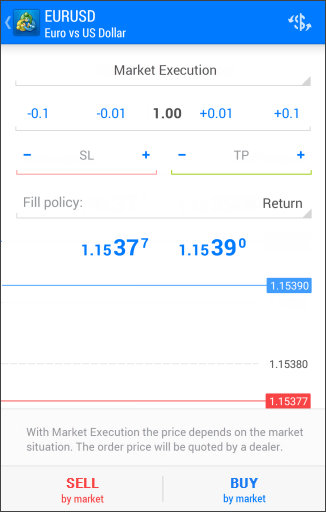 |
| --- | --- |
| - Symbol – the symbol for which you want to perform a trading operation.
- Order type – if one of the execution modes is selected in this field, a market operation will be performed for the selected instrument. Execution modes are described below. You can also switch to placing a [pending order](https://www.metatrader5.com/en/mobile-trading/android/help/trade/pending_place) here.
- Volume – the trade size in lots. Adjust the volume using the adaptive buttons on either side of the field or click the field to enter a value via the keyboard.
- Stop Loss – the [Stop Loss](https://www.metatrader5.com/en/mobile-trading/android/help/trade/general_concept/order_types#stop_loss) level in prices. The level is set to limit the potential losses on the position. If set to zero, this level will not be attached.
- Take Profit – the [Take Profit](https://www.metatrader5.com/en/mobile-trading/android/help/trade/general_concept/order_types#take_profit) level in prices. The level is set to lock in profit on the position. If set to zero, this level will not be attached.
Depending on the instrument's [execution type](https://www.metatrader5.com/en/mobile-trading/android/help/trade/general_concept/execution_types), additional parameters may be available in the order placing window. Execution types are described below.
Tap "Buy" to place a buy order or "Sell" to place a sell order.
Once an order is sent, its execution results will appear in the window: either confirmation of a successful trade or a rejection with the reason specified.
Once the order is executed, the relevant open position record will appear on the [Trade](https://www.metatrader5.com/en/mobile-trading/android/help/trade) tab, as well as the order and the resulting deal(s) will appear in the [History](https://www.metatrader5.com/en/mobile-trading/android/help/history) tab. | |
|  | ## Advanced Mode [#](#extended)
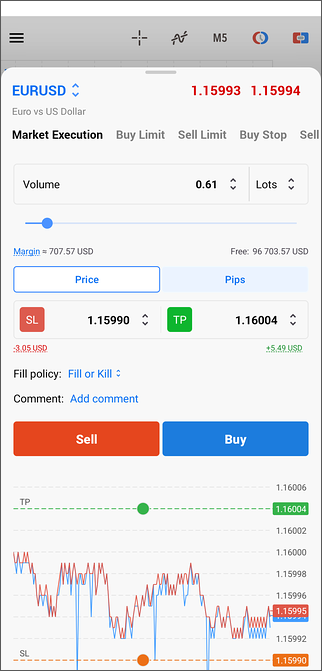
This mode is used when opening positions from the [chart](https://www.metatrader5.com/en/mobile-trading/android/help/chart#manage_positions). It provides additional tools for calculating volume and risk.
### Working with the Dialog
The trading dialog can be minimized, expanded, or stretched to full screen by dragging it up or down. Tapping empty area outside the dialog minimizes it, and tapping again hides it completely.
### Instrument and Prices
The top section displays the selected trading instrument and its current prices. To switch instruments, tap the instrument name.
### Order Type
Use the menu to switch between placing a market order and [creating a pending order](https://www.metatrader5.com/en/mobile-trading/android/help/trade/pending_place).
### Volume
You can specify order volume in two modes:
- Lots – one lot represents a specific number of units of the base asset, defined by the 'Contract size' parameter in the instrument [specification](https://www.metatrader5.com/en/mobile-trading/android/help/quotes#specification). For example, if the contract size is 100,000 units, a volume of 0.01 lots equals 1,000 units of the asset.
- Margin – in this mode, volume is specified as the approximate amount of margin that will be reserved in your account to open the position. |
| For each mode, the application displays the corresponding value in the alternative mode. For example, if you set the volume in lots, the approximate required margin is shown immediately.
Volume can be specified in several ways:
- Using the slider below the field. Minimum and maximum allowable values are calculated automatically.
- Manually via keyboard – tap the current value and enter a new one.
- Using the adjustment panel opened by the arrow button. Suggested increment steps adapt dynamically depending on the current value.
\| - Volume changes are synchronized with the [quick trading panel](https://www.metatrader5.com/en/mobile-trading/android/help/chart#one_click). If you change the volume in the trading dialog, it updates in the panel and vice versa.
- The last used volume is saved after order submission. When creating a new order, the saved values are automatically loaded into the dialog. Only the most recent value is stored; volume values are not saved separately for each symbol. \|
\| --- \|
### Take Profit and Stop Loss
[Take Profit](https://www.metatrader5.com/en/mobile-trading/android/help/trade/general_concept/order_types#take_profit) and [Stop Loss](https://www.metatrader5.com/en/mobile-trading/android/help/trade/general_concept/order_types#stop_loss) levels can be set in several modes:
- Price – the instrument price at which the order should execute.
- Pips – the distance from the order price in pips.
- Currency – an approximate monetary amount in the deposit currency that you will gain or lose when the level is triggered. When entering a desired value, the actual calculated amount is displayed below. This may not exactly match the entered value due to price increments.
For each mode, the application displays the corresponding value in the alternative mode. For example, if you set levels in pips, you will immediately see the corresponding price and the approximate amount you will gain or lose if the level is triggered (if nonzero).
When setting levels in pips, you can lock the Take Profit to Stop Loss ratio by tapping . Now, adjusting one level automatically updates the other using the specified ratio, even when levels are being moved on the [chart](https://www.metatrader5.com/en/mobile-trading/android/help/chart#manage_orders). This setting is retained for future orders until it is changed or disabled.
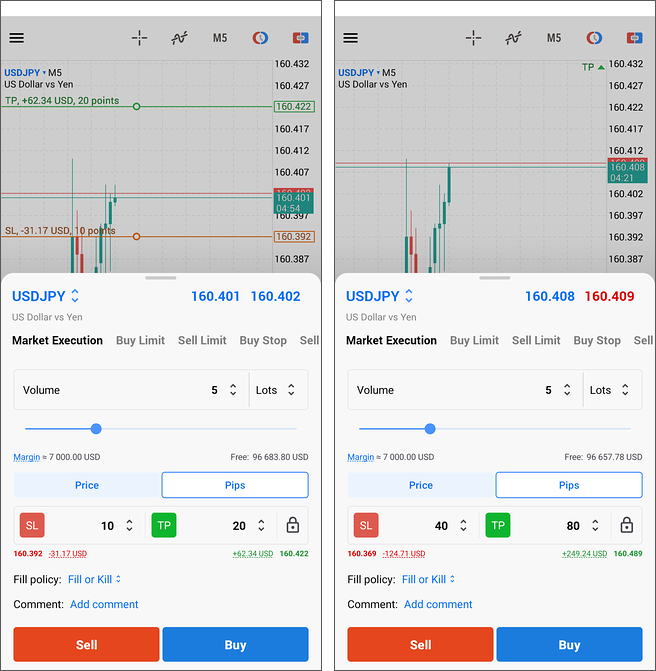
Levels can be set in multiple ways:
- Directly on the chart – for this, you should temporarily minimize the trading panel to adjust levels. Moving levels near chart edges will [automatically rescale](https://www.metatrader5.com/en/mobile-trading/android/help/chart#scroll) the chart, providing access to a wider price range. On default, the levels are set as for a buy position: Take Profit above the current price, and Stop Loss below the current price.
- If stop levels are set in pips or currency, they will automatically move by the same amount when the order price changes. This also respects the [locked ratio of levels](https://www.metatrader5.com/en/mobile-trading/android/help/trade/open_positions#lock_sl_tp) if enabled.
- Manually via keyboard – tap the current value and enter a new one.
- Using the adjustment panel that opens when you tap on the field with a checkmark. Suggested increment steps adapt dynamically depending on the current value.
When opening new positions, stop levels are set adaptively to help prevent errors.
- If you add stop levels from the minimized panel, Take Profit is placed above the current price and Stop Loss below it by default, as for a Buy order.
- If you expand the panel and tap Sell, the application automatically swaps the two levels. The Take Profit level is set to the value previously specified for Stop Loss, and the Stop Loss is set to a value previously specified for Take Profit.
- If you manually reverse the stop levels, only the Sell button remains active in the dialog. The Buy button becomes disabled because it is assumed that you intentionally adjusted the stop levels in that direction.
To remove a level, tap the "SL" or "TP" button.
> The entered Take Profit and Stop Loss values are saved after submitting an order. When placing a new order, previously used values will be automatically loaded into the dialog. Only the most recent value for each level is stored; values are not saved separately for each symbol. Saved values are stored in pips and converted to prices when applied, ensuring levels remain accurate even if the instrument price changes.When switching instruments, previously saved levels may be too far from the current price and may not appear on the chart. In this case, adjust the levels manually or remove and re-add them. By default, levels are placed within visible chart range.
### Additional Parameters
At the bottom of the dialog, you can specify additional parameters:
- In the 'Fill Policy', additional order [filling rules](https://www.metatrader5.com/en/mobile-trading/android/help/trade/general_concept/fill_policy) can be specified: "Fill or Kill" of "Immediate or Cancel". If the field is inactive, the selection is restricted by the server.
- A text comment to the order. It will be displayed in the [trade](https://www.metatrader5.com/en/mobile-trading/android/help/trade) and [history](https://www.metatrader5.com/en/mobile-trading/android/help/history) section. The maximum comment length is 31 symbols. The broker or server may modify the comment. For example, if the position is closed by Stop Loss or Take Profit, the comment may reflect this.
### Tick Chart and Position Opening
For additional price control when opening a position, a tick chart of the instrument is displayed at the bottom of the dialog.
To send a buy order, tap "Buy". To send a sell order, tap Sell. If any value in the dialog is incorrect, the corresponding field is highlighted in red. Trading buttons become inactive if the volume or stop levels are invalid.
## Instant Execution [#](#instant)
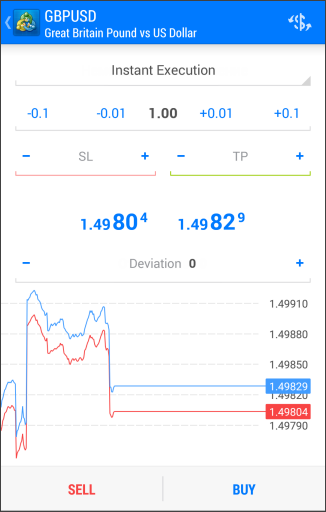
In this mode, a market order is executed at the price quoted by the broker. When sending an execution request, the platform automatically inserts the current price into the order. If the broker confirms the price, the order is executed.
n this mode, the trader may specify an additional parameter – Deviation. This defines the maximum acceptable difference between the requested price and the execution price. The larger the allowed deviation, the lower the likelihood of receiving a requote. If the price deviation is within the specified limit, the order is executed at the new price without additional confirmation.
 | |
| - Volume changes are synchronized with the [quick trading panel](https://www.metatrader5.com/en/mobile-trading/android/help/chart#one_click). If you change the volume in the trading dialog, it updates in the panel and vice versa.
- The last used volume is saved after order submission. When creating a new order, the saved values are automatically loaded into the dialog. Only the most recent value is stored; volume values are not saved separately for each symbol. | |
| If, during order processing, the instrument price changes by more than the value specified in the Deviation field, the dealer (server) may reject the order and provide new execution prices. In this case, a corresponding message will appear in the order window.
If you agree with the new prices, tap "Accept", and the order will be executed at the updated price. If you do not accept the new price, tap "Reject".
The new prices remain valid for only a few seconds. If you do not make a decision within this time, the message "Price changed" will appear. After clicking OK, you will return to the original order placement window. | 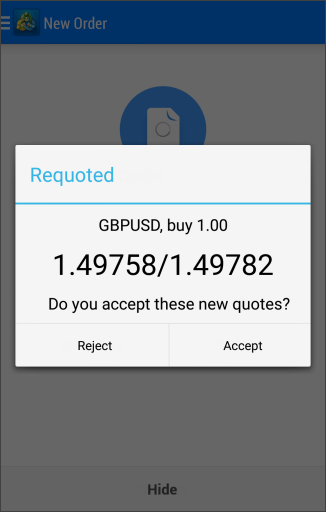 |
| ## Request Execution [#](#request)
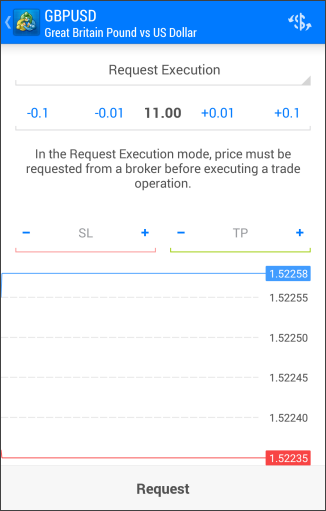
In this mode, a market order is executed at a price previously received from the broker. Before submitting a market order, the platform requests execution prices from the broker. After receiving them, the trader may either confirm or reject execution at the quoted price.
Order parameters can be modified only before requesting prices. Once a price request has been sent, the trader can only place the order using the predefined parameters.
To request prices, tap "Request". After that, the "Buy" and "Sell" buttons will appear in the dialog. The quoted prices are valid for only a few seconds. If no decision is made within that time, the "Buy" and "Sell" buttons will disappear again.
## Market Execution [#](#market)
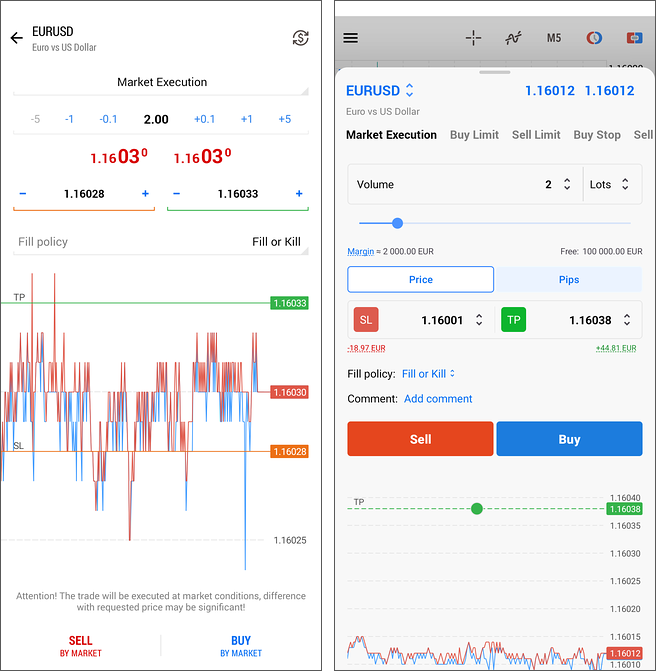
In this mode, the broker determines the execution price without additional confirmation from the trader. Sending a market order in this mode implies prior acceptance of the execution price.
In "Fill policy", additional order [filling rules](https://www.metatrader5.com/en/mobile-trading/android/help/trade/general_concept/fill_policy) can be specified: Fill or Kill, Immediate or Cancel. If the field is inactive, the selection is restricted by the server.
Tapping "Sell by market" or "Buy by market" sends an instruction to the broker to execute the transaction at a price they determine.
## Exchange Execution [#](#exchange)
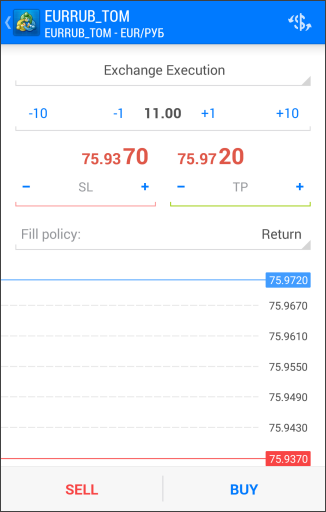
In Exchange Execution mode, trading operations are routed to an external trading system (exchange).
In "Fill Policy", additional order [filling rules](https://www.metatrader5.com/en/mobile-trading/android/help/trade/general_concept/fill_policy) can be specified: Fill or Kill, Immediate or Cancel. If the field is inactive, the selection is restricted by the server.
Tapping "Sell" or "Buy" sends an instruction to the broker to execute the transaction at a price they determine.
## Closing a Position [#](#close)
To realize the profit from a favorable market movement, you must close the position. This process involves executing a trade opposite to the original one. For example, if the initial trade was the purchase of one lot of GOLD, closing the position requires selling one lot of the same instrument.
To close a position, long press the position in the [Trade](https://www.metatrader5.com/en/mobile-trading/android/help/trade#context) tab, select "Close position", then tap the button at the bottom. You can also close a position by selecting its level on a chart and then tapping the "Close" button in the bottom panel.
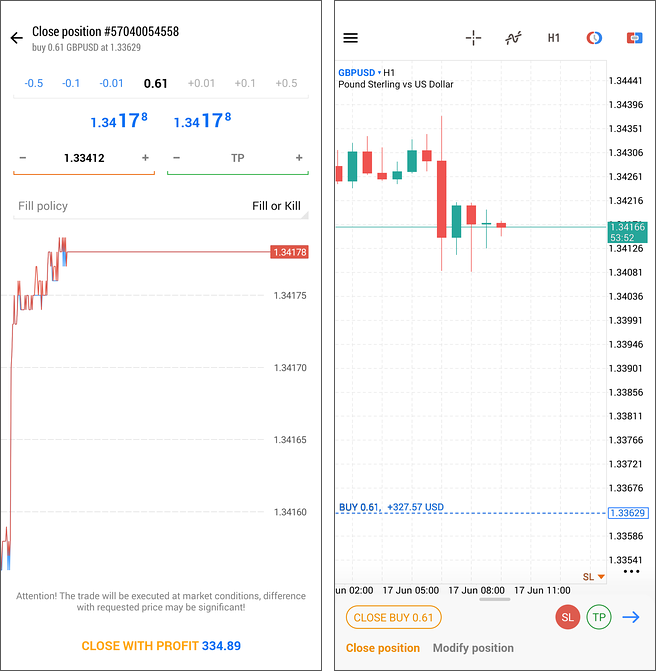
In [Request Execution](https://www.metatrader5.com/en/mobile-trading/android/help/trade/open_positions#request) mode, you must first request a price from the broker before closing the position. After receiving the quoted price, the close button will be available for a few seconds, during which the trader must make a decision.
> A position can be closed in full or in part, depending on the volume of the opposite operation. | |
## In this section
- [Trading Principles](https://www.metatrader5.com/en/mobile-trading/android/help/trade/general_concept)
- Opening and Closing Positions
- [Close By](https://www.metatrader5.com/en/mobile-trading/android/help/trade/closeby)
- [Modifying a Position](https://www.metatrader5.com/en/mobile-trading/android/help/trade/change_positions)
- [Placing Pending Orders](https://www.metatrader5.com/en/mobile-trading/android/help/trade/pending_place)
- [Managing Pending Orders](https://www.metatrader5.com/en/mobile-trading/android/help/trade/pending_change)
- [Bulk Operations](https://www.metatrader5.com/en/mobile-trading/android/help/trade/bulk_operations)
```json
{"@context": "https://schema.org", "@type": "BreadcrumbList", "itemListElement": [ {"@type": "ListItem", "position": 1, "item": {"@id": "https://www.metatrader5.com/en/mobile-trading/android/help", "name": "MetaTrader 5 Android Help"}}, {"@type": "ListItem", "position": 2, "item": {"@id": "https://www.metatrader5.com/en/mobile-trading/android/help/trade", "name": "Trade"}}, {"@type": "ListItem", "position": 3, "item": {"@id": "https://www.metatrader5.com/en/mobile-trading/android/help/trade/open_positions", "name": "Opening and Closing Positions"}} ]}
{ "@context": "https://schema.org", "@type": "FAQPage", "mainEntity": [{ "@type": "Question", "name": "MetaTrader 5: Opening and Closing Positions", "acceptedAnswer": { "@type": "Answer", "text": "Opening a position (entering the market) is the initial purchase or sale of a specified volume of a financial instrument. To do this, you must..." } }] }
```