---
title: "Trade - MetaTrader 5 for Android - MetaTrader 5 Android Help"
description: "The basis of the profit while working in the financial markets is a simple rule: buy cheap and sell dear. One of the main... - Trade - MetaTrader 5 Android Help"
image: "https://www.metatrader5.com/i/logo_metatrader5.png"
url: "https://www.metatrader5.com/en/mobile-trading/android/help/trade"
---
[MetaTrader 5 Android Help](https://www.metatrader5.com/en/mobile-trading/android/help) → Trade
| # How To Trade
The basis of the profit while working in the financial markets is a simple rule: buy cheap and sell dear. One of the main functions of the MetaTrader 5 mobile platform for Android is providing a user with wide opportunities to perform buy and sell operations.
The "Trade" tab features the current state of a trade account, as well as current [positions](https://www.metatrader5.com/en/mobile-trading/android/help/trade/open_positions) and [pending orders](https://www.metatrader5.com/en/mobile-trading/android/help/trade/pending_place). To switch to this tab, use the application side panel that opens at a tap on .
To go to placing of a [new order](https://www.metatrader5.com/en/mobile-trading/android/help/trade/open_positions), tap on  on the top panel.
## Account state [#](#account_state)
The current state of a trade account is shown at the top of the tab: | 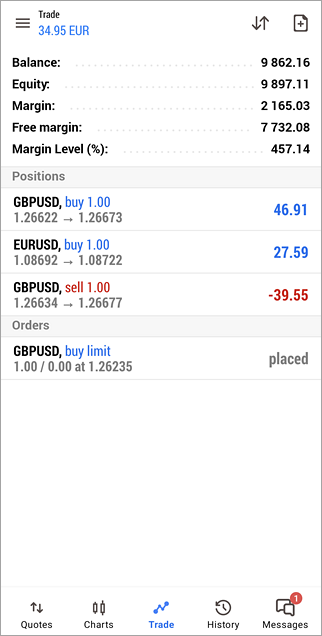 |
| --- | --- |
| - Profit, currency – the total returns of the current trade positions and the account deposit currency.
- Balance – money on the account, not accounting for the results of currently open positions (deposit);
- Credit – amount of funds provided to a trader by a broker as a loan;
- Assets – the current value of purchased financial instruments (of long positions) defined in trader's deposit currency. The value is determined dynamically based on the price of the latest symbol deal taking into account the liquidity margin rate. In fact, the amount of assets is equivalent to the amount of money that the trader would receive in case of immediate closure of long positions. This rate is used on exchange markets.
- Liabilities – obligations on current short positions calculated as the value of these positions at the current market price. In fact, the amount of liabilities is equivalent to the amount of money that the trader would pay in case of immediate closure of short positions.
- Commission – commission by orders and positions accumulated during a day/month. Depending on conditions of collection of commission (determined by broker), a preliminary calculation of commission is performed during a day or a month. The corresponding amount of assets is blocked on the account and its value is shown in this field. Final commission calculation is performed at the end of a day/month, and the appropriate sum is withdrawn from the account by the balance operation (it is displayed as a separate deal on the [History](https://www.metatrader5.com/en/mobile-trading/android/help/history) tab), while the blocked amount is unlocked. In case commission is charged immediately during a deal, its value is shown in the "Commission" field on the history tab.
- Blocked – under certain trading conditions (determined by a broker), a profit fixed during a day cannot be used to perform trade operations (not included in the free margin). This blocked profit is displayed in the "Blocked" field. At the end of the trading day, this profit is unblocked and deposited to the account balance.
- Equity – equity is calculated as Balance + Credit - Commission +/- Floating profit/loss - Blocked;
- Margin – money required to cover open positions and pending orders;
- Free Margin – the free amount of money that can be used to open positions. It is calculated as Equity - Margin. Depending on the trading conditions (defined by a broker), the equity value may or may not consider: floating profit, floating loss or floating profit and floating loss together;
- Margin Level – percentage of the account equity to the margin volume (Equity / Margin * 100);
- Total of deals – total financial result of all open positions.
\| If the account gets "Margin Call", the margin fields are highlighted in red. \|
\| --- \| | |
| If the account gets "Margin Call", the margin fields are highlighted in red. | |
|  | ## Trading Commands
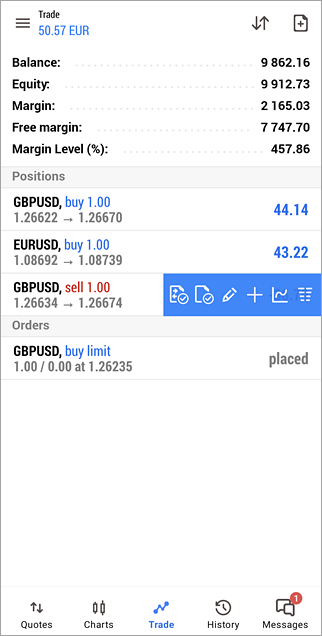
To quickly modify or close a position or order, swipe on its row from right to left. This will open a menu of commands:
The following commands are available here:
-  – [close a position by an opposite one](https://www.metatrader5.com/en/mobile-trading/android/help/trade/closeby). The command is only available on hedging accounts, if an opposite position for the same symbol exists.
-  – [close position](https://www.metatrader5.com/en/mobile-trading/android/help/trade/open_positions)/[delete order](https://www.metatrader5.com/en/mobile-trading/android/help/trade/pending_change#delete).
-  – [modify position](https://www.metatrader5.com/en/mobile-trading/android/help/trade/change_positions)/[modify order](https://www.metatrader5.com/en/mobile-trading/android/help/trade/pending_change#modify).
-  – [increase position](https://www.metatrader5.com/en/mobile-trading/android/help/trade/open_positions)/[place an order](https://www.metatrader5.com/en/mobile-trading/android/help/trade/pending_place) at the same symbol.
-  – open a [chart](https://www.metatrader5.com/en/mobile-trading/android/help/chart) of the symbol the open position or placed order.
-  – open the [Market Depth](https://www.metatrader5.com/en/mobile-trading/android/help/depth_of_market) of the symbol the open position or placed order. |
| ## Sorting positions and orders
To sort open positions and pending orders, tap  on the top panel.
Trading operations can be sorted by symbol, ticket, time, and profit. For a reverse sorting by the selected parameter, tap on it again.
Sorting to positions and orders is applied separately. | 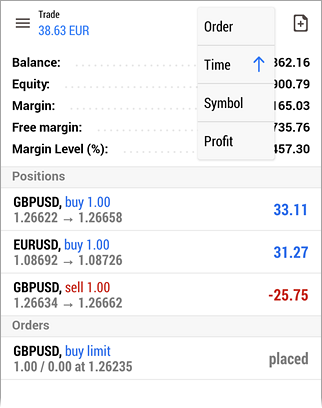 |
| ## Positions [#](#position)
Current open positions are shown in this part. By default, only brief information about positions is shown here. To see more details, tap once on the position line.
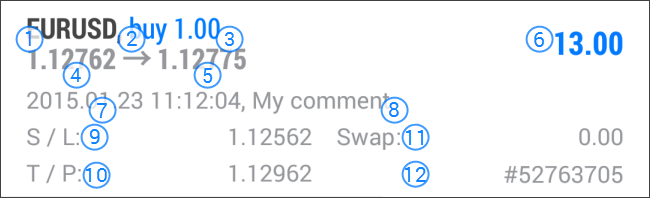
1. Symbol – a financial instrument of the open position;
2. Type – position type: "Buy" – long, "Sell" – short;
3. Volume – volume of a trade operation (in lots or units). The minimal volume and its change step are limited by a brokerage company, the maximal one – by the deposit size.
4. Price – the price of a deal, as a result of which the position was opened. If the opened position is a result of execution of several deals, then this field displays their weighted average price: (price of deal 1 * volume of deal 1 + ... + price of deal N * volume of deal N) / (volume of deal 1 + ... + volume of deal N). The accuracy of rounding of the the weighted average price is equal to the number of decimal places in the symbol price plus three additional characters.
5. Price – the current price of the financial symbol.
6. Profit – the financial result of the deal execution, taking into account the current price. A positive result indicates the profitability of the deal, negative indicates loss.
7. Time – time when the position was opened. The record is represented as YYYY.MM.DD HH:MM (year.month.day hour:minute).
8. Comment – a comment to a position. A comment can be added only when [placing an order](https://www.metatrader5.com/en/mobile-trading/android/help/trade/open_positions) from the PC version of the MetaTrader 5 platform. The comment cannot be changed when modifying an order. In addition, a comment on a trade operation can be added by a brokerage company.
9. S/L – the [Stop Loss](https://www.metatrader5.com/en/mobile-trading/android/help/trade/general_concept/order_types#stop_loss) level of the current position. If the order has not been placed, a zero value is displayed;
10. T/P – the [Take Profit](https://www.metatrader5.com/en/mobile-trading/android/help/trade/general_concept/order_types#take_profit) level of the current position. If the order has not been placed, a zero value is displayed;
11. Swap – amount of swaps charged.
12. # – position ticket (unique number).
## Orders [#](#orders)
Pending orders placed are shown in this part. By default, only brief information about orders is shown here. To see more details, tap once on the order line.
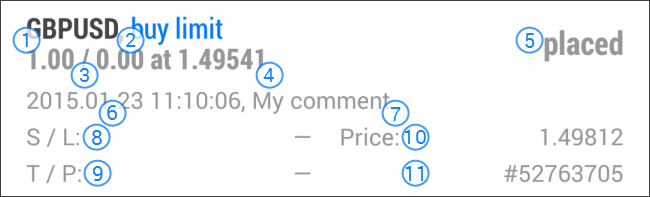
1. Symbol – the financial instrument of the pending order.
2. Type – [type of the pending order](https://www.metatrader5.com/en/mobile-trading/android/help/trade/general_concept/order_types#pending_order): "Sell Stop", "Sell Limit", "Buy Stop", "Buy Limit", "Buy Stop Limit" or "Sell Stop Limit";
3. Volume – volume requested in the pending order, and volume covered by the deal (in lots or units).
4. Price – price reaching which the pending order will trigger;
5. State – the current [status](https://www.metatrader5.com/en/mobile-trading/android/help/trade/general_concept/order_state) of the pending order: "Started", "Placed" etc.
6. Time – pending order placing time. The record is represented as YYYY.MM.DD HH:MM (year.month.day hour:minute).
7. Comment – a comment to the order. A comment can be added only when [placing an order](https://www.metatrader5.com/en/mobile-trading/android/help/trade/pending_place) from the PC version of the MetaTrader 5 platform. The comment cannot be changed when modifying an order. In addition, a comment on a trade operation can be added by a brokerage company.
8. S/L – level of the placed [Stop Loss order](https://www.metatrader5.com/en/mobile-trading/android/help/trade/general_concept/order_types#stop_loss). If the order has not been placed, a zero value is displayed;
9. T/P – level of the set [Take Profit](https://www.metatrader5.com/en/mobile-trading/android/help/trade/general_concept/order_types#take_profit) order. If the order has not been placed, a zero value is displayed.
10. Price – the current price of the financial symbol.
11. # – ticket number (a unique identifier) of the pending order.
> When approaching the market, the order background is colored in green.
## Context Menu [#](#context)
To expand information about a position or an order, tap once on its line. To display a context menu, tap and hold on the line for a second.
### Position Context Menu
- Close position – [go to position closing](https://www.metatrader5.com/en/mobile-trading/android/help/trade/open_positions).
- New order – open the [trade](https://www.metatrader5.com/en/mobile-trading/android/help/trade/open_positions) tab. In this case, the symbol and volume of the trade operation are automatically set in accordance with the position, on which the context menu is called.
- Modify position – [modify](https://www.metatrader5.com/en/mobile-trading/android/help/trade/pending_change) the Stop Loss and Take Profit levels of a position.
- Chart – open the [chart](https://www.metatrader5.com/en/mobile-trading/android/help/chart) of the instrument for which the position is open.
### Order Context Menu
- Modify order – open the window of [order modification](https://www.metatrader5.com/en/mobile-trading/android/help/trade/pending_change).
- Delete order – go to order canceling.
- Chart – open the [chart](https://www.metatrader5.com/en/mobile-trading/android/help/chart) of the instrument for which the order is placed.
## The Menu button [#](#menu_button)
The Menu button on your device (if available) calls a menu with additional commands:
- New order – go to placing [a new order](https://www.metatrader5.com/en/mobile-trading/android/help/trade/open_positions).
- Symbols – configure the lists of [symbols](https://www.metatrader5.com/en/mobile-trading/android/help/quotes) shown on the "Quotes" TAB.
- Accounts – manage [trade accounts](https://www.metatrader5.com/en/mobile-trading/android/help/settings_accounts).
- Messages – view [push notifications](https://www.metatrader5.com/en/mobile-trading/android/help/push).
- Settings – go to the [settings](https://www.metatrader5.com/en/mobile-trading/android/help/settings) of the MetaTrader 5 for Android.
- About – view information about the program. | |
## In this section
- [Trading Principles](https://www.metatrader5.com/en/mobile-trading/android/help/trade/general_concept)
- [Opening and Closing Positions](https://www.metatrader5.com/en/mobile-trading/android/help/trade/open_positions)
- [Close By](https://www.metatrader5.com/en/mobile-trading/android/help/trade/closeby)
- [Modifying a Position](https://www.metatrader5.com/en/mobile-trading/android/help/trade/change_positions)
- [Placing Pending Orders](https://www.metatrader5.com/en/mobile-trading/android/help/trade/pending_place)
- [Managing Pending Orders](https://www.metatrader5.com/en/mobile-trading/android/help/trade/pending_change)
- [Bulk Operations](https://www.metatrader5.com/en/mobile-trading/android/help/trade/bulk_operations)
```json
{"@context": "https://schema.org", "@type": "BreadcrumbList", "itemListElement": [ {"@type": "ListItem", "position": 1, "item": {"@id": "https://www.metatrader5.com/en/mobile-trading/android/help", "name": "MetaTrader 5 Android Help"}}, {"@type": "ListItem", "position": 2, "item": {"@id": "https://www.metatrader5.com/en/mobile-trading/android/help/trade", "name": "Trade"}} ]}
{ "@context": "https://schema.org", "@type": "FAQPage", "mainEntity": [{ "@type": "Question", "name": "MetaTrader 5: Trade", "acceptedAnswer": { "@type": "Answer", "text": "The basis of the profit while working in the financial markets is a simple rule: buy cheap and sell dear. One of the main functions of the..." } }] }
```